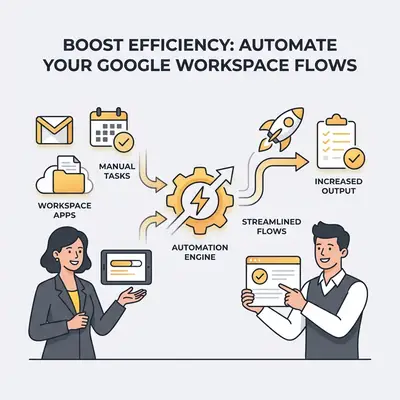
The Hidden Time Sink: Why Manual Google Workspace Tasks Are Holding You Back
In today's fast-paced business environment, efficiency is not merely a goal; it's a prerequisite for sustained growth and competitiveness. Yet, countless organizations remain tethered to manual processes within their Google Workspace, unknowingly sacrificing precious time, resources, and employee morale. While Google Workspace applications like Gmail, Calendar, Drive, Docs, and Sheets are undeniably powerful tools, their full potential often remains untapped when daily operations rely on repetitive, human-driven actions.
Consider the cumulative impact of these small, seemingly insignificant tasks. An employee spends 15 minutes manually updating a spreadsheet with new form submissions, then another 10 minutes drafting personalized follow-up emails, and an additional 20 minutes scheduling meetings based on availability. Multiply this across a team of five, ten, or fifty employees, performed daily or weekly, and the scale of the time sink becomes alarmingly clear. These are not strategic activities; they are operational necessities that, when performed manually, divert critical brainpower and energy from higher-value work.
Identifying Common Bottlenecks in Your Daily Workflow
Pinpointing where these inefficiencies lie is the first step toward reclaiming productivity. Many organizations fall into common traps that, while perhaps always "done this way," are prime candidates for automation.
- Email Overload and Manual Sorting: Teams often spend hours sifting through inboxes, categorizing emails, forwarding specific requests, or extracting information to log elsewhere. Whether it's support tickets, sales inquiries, or internal communications, this manual triage is slow, prone to oversight, and highly repetitive. For instance, a sales team might manually copy details from inquiry emails into a Google Sheet or CRM.
- Data Entry and Cross-Application Updates: Information frequently needs to move between different Google Workspace applications. A new lead submitted via Google Forms needs to be added to a Google Sheet, an event in Google Calendar, and perhaps a contact list in Gmail. Manually transferring this data is not only time-consuming but also a significant source of data entry errors. A marketing team might manually update campaign performance metrics from Google Ads into a Google Sheet, then use that data to generate reports in Google Docs.
- Meeting Scheduling and Coordination: Finding a suitable time for multiple attendees, creating meeting links, sending invites, and sharing preparatory documents can consume considerable administrative time. This is especially true for recurring meetings or when coordinating across different time zones.
- Document Management and Version Control: Collaborating on documents in Google Drive and Docs is seamless, but managing approvals, ensuring the latest version is used, or systematically archiving older versions can still involve manual steps, leading to confusion and potential rework.
- Onboarding and Offboarding Processes: Bringing new employees up to speed or managing the departure of existing ones involves a checklist of repetitive tasks: setting up Drive folders, granting access to specific Google Groups, creating calendar entries for onboarding sessions, or revoking access upon departure. Each step, when done manually, adds to the administrative burden.
The True Cost of Manual Repetition: Time, Errors, and Employee Frustration
The aggregated impact of these manual tasks extends far beyond mere inconvenience.
- Lost Productivity and Opportunity Costs: Repetitive administrative work does not show up as a line item, which is why it goes unbudgeted. Work out what a given employee costs per hour, multiply by the hours they spend each week on tasks a workflow could do, and you have the real figure for your own organization. It is usually larger than people expect, and it scales with headcount.
- Increased Risk of Errors: Human error is an inevitable component of manual data entry and task execution. A misplaced decimal point in a spreadsheet, a forgotten email attachment, or an incorrect meeting time can lead to financial inaccuracies, communication breakdowns, and damaged client relationships. Even minor errors require time and resources to identify and correct, creating an additional layer of inefficiency.
- Employee Frustration and Burnout: Repetitive, mundane tasks are demotivating. Employees often join organizations seeking to apply their skills, solve complex problems, and contribute meaningfully. When a substantial portion of their day is consumed by tasks that offer little intellectual stimulation or challenge, it leads to decreased job satisfaction, higher turnover rates, and reduced overall engagement. This frustration directly impacts morale and, subsequently, team performance and innovation.
- Delayed Response Times: Manual processes inherently introduce delays. A lead inquiry might sit in an inbox for hours before being logged and acted upon, potentially resulting in a lost sales opportunity. A critical support ticket might not be escalated promptly, leading to customer dissatisfaction. In today's expectation of instantaneity, these delays can have tangible negative consequences for customer experience and brand reputation.
Addressing these hidden time sinks through Google Workspace automation is not just about saving time; it's about fundamentally transforming how your organization operates, empowering your teams, and freeing up resources for truly impactful work.
Unlocking Potential: What Google Workspace Automation Can Do For You
Automating your Google Workspace flows transforms these essential applications from individual tools into a cohesive, intelligent ecosystem designed to work for you. By connecting and orchestrating tasks across Gmail, Calendar, Drive, Sheets, Docs, and other services, businesses can achieve unprecedented levels of operational efficiency and strategic agility.
Streamlining Communication with Automated Email Management
Email, while indispensable, can quickly become a bottleneck. Automation can significantly alleviate this burden, ensuring that critical communications are handled promptly and intelligently.
- Intelligent Inbox Triage: Automatically categorize incoming emails based on sender, subject, or content keywords. For example, emails from a specific client or concerning a particular project can be moved to a designated folder in Gmail, marked as important, or even forwarded to a specific team member. This reduces manual sorting time and ensures relevant emails reach the right people faster.
- Automated Follow-ups and Reminders: Set up sequences to send personalized follow-up emails after a certain period (e.g., if a proposal hasn't been acknowledged) or send automated reminders for upcoming meetings or deadlines pulled from Google Calendar. This ensures no communication falls through the cracks and saves sales or project managers valuable time.
- Support Ticket Routing: Integrate Gmail with Google Sheets or a lightweight CRM. When an email with "support" or "urgent" in the subject line arrives, automation can extract key details, log them into a tracking sheet, and notify the relevant support agent via Google Chat, all without human intervention.
- Personalized Responses: For frequently asked questions, automation can draft templated responses using information pulled from a knowledge base in Google Docs or Sheets, allowing human agents to focus on more complex inquiries.
Enhancing Data Management and Reporting Efficiency
Data is the lifeblood of modern business, but manually collecting, organizing, and reporting on it is often tedious and error-prone. Automation can transform your data workflows into seamless, reliable pipelines.
- Automated Data Capture: Capture responses from Google Forms directly into a structured Google Sheet. This is invaluable for lead generation, surveys, event registrations, or internal requests. The automation ensures data is instantly available, formatted consistently, and ready for analysis.
- Cross-Application Data Sync: Automatically synchronize data between Google Workspace applications. For instance, customer information updated in a Google Sheet can trigger updates to contact details in Gmail, or project milestones from a Google Sheet can automatically create events in Google Calendar for team visibility.
- Automated Report Generation: Compile data from various Google Sheets into a consolidated report in Google Docs or Slides on a scheduled basis. Imagine a weekly sales report that automatically pulls performance metrics, current lead statuses, and upcoming client meetings, populating a pre-designed template without a single manual copy-paste operation.
- Real-time Dashboards: While Looker Studio (formerly Google Data Studio) offers powerful dashboarding, automation can feed it with up-to-the-minute data from Google Sheets, ensuring your reports are always current and reflective of the latest operational status. This eliminates the need for manual data refreshes before every meeting.
Orchestrating Collaborative Projects Seamlessly
Google Workspace excels at collaboration, but project management often involves a myriad of administrative tasks that can be automated to ensure projects stay on track and teams remain synchronized.
- Automated Task Assignment and Notification: When a project status changes in a Google Sheet, or a new task is added, automation can assign it to the relevant team member, create a corresponding task in their Google Calendar, and send a notification via Gmail or Google Chat.
- Document and Folder Structure Creation: For every new project or client, automation can instantly create a standardized folder structure in Google Drive, pre-populate it with necessary templates from Google Docs or Sheets, and share access with the designated team members. This ensures consistency, reduces setup time, and maintains organized file management.
- Meeting Lifecycle Management: Beyond just scheduling, automation can handle the entire meeting lifecycle: sending pre-meeting agendas (from Google Docs), creating and attaching Google Meet links, reminding participants shortly before the meeting, and even distributing meeting summaries or action items (from notes taken in Docs) afterward.
- Milestone Tracking and Alerts: Monitor key milestones in a project management Google Sheet. If a deadline approaches without status updates, automation can escalate the issue by notifying project managers or team leads, preventing delays before they become critical.
- Resource Allocation: For teams managing shared resources (e.g., meeting rooms, equipment, or even specific expert consultants), automation can cross-reference Google Calendar availability with project timelines to suggest optimal allocation or flag conflicts, minimizing scheduling headaches.
By embracing these automated workflows, businesses can move beyond reactive task management to proactive, strategic operations. Employees are freed from repetitive drudgery, allowing them to dedicate their expertise to problem-solving, innovation, and client relationships, ultimately driving greater value for the organization.
Actionable Automations: Real-World Google Workspace Flow Examples
Let's dive into practical, implementable examples of Google Workspace automation. These flows can significantly reduce manual effort and improve key business processes.
Automate Lead Nurturing: Gmail, Sheets & Calendar Integration
This flow is critical for sales and marketing teams to ensure no lead is left behind and follow-up is timely and personalized.
The Manual Headache: A new lead fills out a Google Form on your website. Someone manually copies their details into a Google Sheet, then drafts a personalized welcome email, then manually checks team calendars to schedule an introductory call, and finally sends a Google Calendar invitation. This process is time-consuming, prone to delays, and often inconsistent.
The Automated Flow:
- Trigger: A new response is submitted to your Google Form (e.g., "Contact Us" or "Demo Request").
- Action 1 (Data Capture): Automatically capture all form data and append it as a new row in a designated "New Leads" Google Sheet. This ensures a centralized, real-time lead database.
- Action 2 (Personalized Email): Based on the data in the Google Sheet (e.g., lead name, company), send a personalized welcome email via Gmail. This email can include a custom message, links to relevant resources, and a call to action. You can even include a link to a booking tool (like Calendly or Acuity Scheduling, which can often integrate with Google Calendar) directly in the email.
- Action 3 (Internal Notification): Send an internal notification to the relevant sales team or specific sales representative via Google Chat or a dedicated Gmail alias, informing them of the new lead and linking directly to the Google Sheet entry.
- Action 4 (Task Creation - Optional but Recommended): Create a task for the assigned sales rep in their Google Calendar with a reminder to follow up, or if using a booking tool, monitor for successful booking.
- Action 5 (Lead Nurturing Sequence - Advanced): If the lead doesn't book a call within 48 hours, trigger a follow-up email reminder. If they do book, update their status in the Google Sheet and halt further generic nurturing emails.
Tools Involved: Google Forms, Google Sheets, Gmail, Google Calendar, Google Chat (optional). Automation platforms like n8n, Make, or Zapier are ideal for orchestrating these steps.
Simplify Onboarding/Offboarding: Drive, Docs & Groups Automation
Managing employee lifecycle events efficiently is crucial for both employee experience and organizational security.
The Manual Headache: When a new employee joins, HR manually creates their Drive folders, shares specific documents, adds them to relevant Google Groups, and sends an introductory meeting invite. For offboarding, the process reverses: manually revoking access, archiving data, and removing from groups. This is a repetitive and error-prone administrative burden.
The Automated Flow (Onboarding Example):
- Trigger: A new row is added to an "Approved Hires" Google Sheet (e.g., after HR approval), containing employee name, department, start date, and email.
- Action 1 (Drive Folder Creation): Automatically create a dedicated folder in Google Drive for the new employee (e.g.,
Employees/John Doe) and populate it with a standardized set of onboarding documents (e.g., "Welcome Pack.pdf," "Employee Handbook.docx") from a template folder. - Action 2 (Access Provisioning): Grant the new employee specific access permissions to their new Drive folder and any departmental shared drives based on their department listed in the Google Sheet.
- Action 3 (Google Groups Membership): Add the employee to relevant Google Groups (e.g.,
[email protected],[email protected]) based on their department or role. - Action 4 (Calendar Integration): Create an onboarding schedule in their Google Calendar, including key introductory meetings, training sessions, and HR checkpoints. Send automated email notifications via Gmail with details.
- Action 5 (Welcome Email): Send a personalized welcome email to the new employee (and perhaps their manager) via Gmail with links to their new Drive folder, important resources, and their initial calendar schedule.
- Action 6 (Manager Notification): Send a notification to the employee's manager via Google Chat or Gmail confirming all initial setup steps are complete.
Tools Involved: Google Sheets, Google Drive, Google Docs, Google Groups, Google Calendar, Gmail, Google Chat.
Offboarding (Reverse Flow Example): Upon an employee's departure date in the "Employees" Google Sheet, trigger actions to:
- Revoke access to all shared Drive folders and documents.
- Remove them from all Google Groups.
- Transfer ownership of their Drive files to their manager or a designated archive folder.
- Remove their Calendar entries.
- Send an internal notification to IT and HR that offboarding is complete.
Event Management Made Easy: Forms, Calendar & Meet Integration
Organizing workshops, webinars, or internal company events involves a host of administrative tasks that can be largely automated.
The Manual Headache: Event registration involves collecting attendee information, manually adding them to a list, sending confirmation emails, creating calendar invitations, and then generating individual Google Meet links or sending reminders. This is particularly cumbersome for events with many attendees or frequent occurrences.
The Automated Flow:
- Trigger: An attendee submits your Google Form to register for an event (e.g., "Webinar Registration").
- Action 1 (Data Capture): Automatically record the attendee's details (name, email, company) into a dedicated "Event Attendees" Google Sheet.
- Action 2 (Confirmation Email): Send an immediate, personalized confirmation email via Gmail to the attendee. This email can include event details, a thank-you message, and any pre-event instructions.
- Action 3 (Calendar Invitation): Create a Google Calendar event for the attendee with all the necessary details: date, time, event description, and importantly, an automatically generated Google Meet video conference link. The attendee receives a calendar invitation directly.
- Action 4 (Internal Tracking): Update the Google Sheet with a "Confirmed" status and potentially notify the event organizer via Google Chat of new registrations.
- Action 5 (Reminder Sequence - Advanced): Schedule automatic reminder emails (via Gmail) to be sent to all confirmed attendees 24 hours and 1 hour before the event begins, reiterating the Google Meet link and any last-minute information.
- Action 6 (Post-Event Follow-up - Advanced): After the event, send a thank-you email (via Gmail) to all attendees, including a link to the event recording (if stored in Google Drive) or a feedback survey (via Google Forms).
Tools Involved: Google Forms, Google Sheets, Gmail, Google Calendar, Google Meet.
These examples demonstrate the power of connecting Google Workspace applications to streamline processes. By implementing even one of these flows, businesses can unlock significant time savings and reduce the incidence of manual errors, allowing teams to focus on more strategic initiatives.
Building Your Own Flows: Key Components and Considerations
Creating effective automated workflows in Google Workspace involves a methodical approach, even if you’re using intuitive tools like Evalics. Understanding the core components and key considerations will empower you to design robust and reliable automations.
Identifying the Right Triggers and Actions Within Google Workspace Apps
Every automation begins with a trigger and proceeds with one or more actions.
- Triggers: A trigger is the event that initiates your workflow. It's the "when" of your automation.
- Google Forms: New form submission (e.g., new lead, support request).
- Google Sheets: New row added, specific cell updated, a row deleted.
- Gmail: New email received (from a specific sender, with a specific subject, containing keywords), email labeled, email starred.
- Google Calendar: New event created, event updated, event starting soon.
- Google Drive: New file created in a folder, file updated, specific folder shared.
- Google Docs: Document updated (less common for direct triggers, but content can be analyzed).
- Time-based/Scheduled Triggers: These run at specific intervals (e.g., daily at 9 AM, weekly on Monday).
- Actions: An action is the task that your automation performs in response to a trigger. It's the "do this" part of your workflow.
- Google Sheets: Add a new row, update a row, delete a row, search for data.
- Gmail: Send an email, create a draft, apply a label, move an email, reply to an email.
- Google Calendar: Create an event, update an event, delete an event, find available times.
- Google Drive: Create a folder, upload a file, copy a file, set file permissions, move a file.
- Google Docs: Create a new document from a template, update content in a document.
- Google Meet: Generate a meeting link (often tied to Calendar event creation).
- Google Chat: Send a message to a space or direct message.
The key is to think about the natural flow of information and tasks within your existing manual process. What event currently makes you start a new task? That's likely your trigger. What do you do next? Those are your actions.
Mapping Out Your Process Step-by-Step for Clarity
Before you touch any automation tool, clearly document your current manual process. This "as-is" state is your baseline. Then, envision the "to-be" automated state.
- Define the Goal: What specific problem are you trying to solve? (e.g., "Reduce time spent on lead follow-up," "Ensure consistent onboarding for new hires").
- Identify the Start (Trigger): What event kicks off this process?
- List Each Manual Step: Break down your current manual process into granular steps. Who does what, and in which application?
- Identify Data Points: What information is exchanged between steps or applications? (e.g., lead name, email, department, event date).
- Determine Decisions/Conditions: Are there any "if this, then that" scenarios? (e.g., "If lead is from Company X, assign to Sales Team A; otherwise, assign to Sales Team B"). These will become conditional logic in your automation.
- Map to Automation: For each manual step, determine if it can be replaced by an automated action.
- Visualize: Use flowcharts, simple diagrams, or even bullet points to visualize the sequence of triggers, actions, and conditions. This helps identify missing steps or logical gaps.
A well-mapped process simplifies the building phase immensely and ensures your automation achieves its intended outcome without unintended side effects.
Security and Data Privacy Best Practices for Automated Flows
Automating processes that handle sensitive information requires a strong focus on security and data privacy.
- Principle of Least Privilege: Grant your automation tool (or the service account it uses) only the minimum necessary permissions to perform its designated tasks. If a flow only needs to read data from a Google Sheet, don't give it permission to delete files in Google Drive.
- Secure API Keys and Credentials: Ensure that any API keys, access tokens, or credentials used by your automation platform are stored securely. Reputable platforms like Evalics, n8n, Make, or Zapier encrypt these credentials and handle them in compliance with industry standards. Avoid hardcoding sensitive information directly into your workflow definitions.
- Data Minimization: Only collect and process the data absolutely necessary for the automation to function. Avoid extracting or storing extraneous personal identifiable information (PII) if it's not required for the workflow.
- Regular Audits and Monitoring: Periodically review your automated flows, their logs, and the data they handle. Check for any unusual activity, errors, or unauthorized access attempts. Tools often provide logs that detail when a flow ran, if it succeeded, and what data it processed.
- Compliance (GDPR, HIPAA, etc.): Understand the data privacy regulations relevant to your industry and region. Ensure your automated flows are designed to comply. For example, if you're handling patient data, your automation needs to adhere to HIPAA guidelines, which may require specific data encryption and access controls.
- Data Residency: Be aware of where your automation platform stores data and processes it, especially if you have strict data residency requirements.
- Error Handling: Design your flows with robust error handling. What happens if an API call fails, or a required data field is missing? Implement notifications (e.g., send an email to an admin) and retry mechanisms to prevent data loss or workflow interruptions.
- Version Control: For complex flows, implement version control (if your automation platform supports it) so you can track changes, revert to previous versions, and collaborate safely.
By adhering to these best practices, you can leverage the power of automation while maintaining the integrity and security of your organization's data.
Beyond Simple Rules: How AI Supercharges Your Workspace Automation
While traditional automation tools excel at "if X, then Y" rules, the true transformative power emerges when Artificial Intelligence is woven into your Google Workspace flows. AI elevates automation from reactive task execution to proactive, intelligent decision-making, offering capabilities that far exceed simple logic.
Intelligent Content Analysis for Smarter Routing and Categorization (Gmail, Drive)
AI's ability to understand context and content revolutionizes how unstructured data, like emails and documents, are processed.
- Email Intent and Sentiment Analysis (Gmail): Instead of merely relying on keywords, AI models like Google's Gemini or custom natural language processing (NLP) solutions can analyze the full text of an incoming email to determine its intent (e.g., sales inquiry, support request, partnership proposal, urgent issue) and even its sentiment (positive, negative, neutral).
- Example: An email arrives in a general inbox. AI identifies it as a "high-priority customer complaint" with "negative sentiment." Instead of just forwarding it to a general support alias, the AI-powered flow can:
- Automatically create a high-priority ticket in your CRM (Google Sheets or a dedicated system).
- Assign it to a specific senior support agent based on the product mentioned in the email.
- Send an immediate notification to the support team lead via Google Chat.
- Draft a preliminary empathetic response using a template, ready for human review.
- Example: An email arrives in a general inbox. AI identifies it as a "high-priority customer complaint" with "negative sentiment." Instead of just forwarding it to a general support alias, the AI-powered flow can:
- Document Categorization and Extraction (Drive, Docs): AI can read and understand the content of documents stored in Google Drive, beyond just their file names or metadata.
- Example: A new contract PDF is uploaded to a "Contracts Pending Review" folder in Google Drive. AI can:
- Automatically extract key entities like client name, contract value, effective dates, and renewal terms using optical character recognition (OCR) and NLP.
- Populate these details into a Google Sheet for tracking.
- Categorize the contract based on its type (e.g., NDA, Service Agreement, Vendor Contract) and move it to the appropriate subfolder.
- Notify the legal department via Gmail or Chat, linking directly to the document and relevant extracted information.
- Example: A new contract PDF is uploaded to a "Contracts Pending Review" folder in Google Drive. AI can:
This level of intelligence means your automated flows can respond dynamically to the actual content, not just pre-defined rules, significantly reducing manual data entry and improving accuracy.
Predictive Scheduling and Resource Allocation (Calendar, Meet)
AI can optimize your calendar and resource management by learning patterns and predicting needs.
- Optimized Meeting Scheduling (Calendar, Meet): Moving beyond simple "find the first available slot," AI can analyze calendars, email exchanges, and project timelines to suggest the optimal meeting time.
- Example: You need to schedule a project kickoff meeting with five team members. AI can consider:
- Each person's typical availability (from Google Calendar).
- Their current workload and existing commitments.
- Travel time implications (if relevant, using Google Maps data).
- Project deadlines (from Google Sheets).
- The meeting's importance or urgency (from a flag set in the request). It then proposes the best time that minimizes disruption, ensures maximum attendance, and aligns with project priorities, automatically sending out Google Calendar invites with pre-generated Google Meet links.
- Example: You need to schedule a project kickoff meeting with five team members. AI can consider:
- Predictive Resource Allocation: For shared resources like meeting rooms, specialized equipment, or even expert consultants, AI can learn usage patterns and predict future demand.
- Example: If certain meeting rooms are consistently overbooked on specific days, AI could automatically suggest alternative times or nearby available rooms, or even flag potential conflicts before they arise, helping administrative staff proactively manage bookings in Google Calendar.
Personalized Workflow Adaptations Based on User Behavior
AI can make your automated flows more dynamic and responsive by learning from how users interact with the Workspace.
- Adaptive Notifications (Gmail, Chat): Instead of sending generic notifications, AI can learn a user's preferences for receiving alerts.
- Example: For a specific project, an employee might prefer immediate Google Chat notifications for high-priority updates but daily email summaries for routine tasks. AI can analyze their interaction patterns (e.g., how quickly they respond to different types of notifications) and adjust the delivery method and frequency of future alerts to match their actual working style.
- Contextual Information Retrieval (Drive, Docs): When an employee is working on a specific Google Doc or Sheet, AI could proactively suggest related documents, templates, or relevant information from Google Drive that they might need, based on the content they are creating and their past usage patterns.
- Example: As a sales rep drafts a proposal in Google Docs for "Client X," the AI could automatically suggest previous proposals for "Client X," relevant case studies from the shared Drive, or even the latest pricing sheet from Google Sheets.
- Proactive Task Suggestions: AI can analyze an employee's calendar, email, and document activity to identify potential next steps or tasks they might need to undertake.
- Example: If an employee schedules a "Client Meeting" in Google Calendar and later receives an email summarizing the meeting, AI might proactively suggest creating a "Follow-up Task" in their calendar or drafting a "Meeting Minutes" document in Drive, prompting them to take action before they even think of it.
By integrating AI, your Google Workspace automation evolves from a simple rule engine to an intelligent assistant that understands, predicts, and adapts, freeing up human potential for truly strategic endeavors. This is where Evalics brings significant value, harnessing advanced AI to build these next-generation workflows.
Getting Started with Evalics: Your Partner in Workspace Transformation
Embarking on the journey of Google Workspace automation might seem daunting, given the myriad of possibilities and the technical considerations involved. This is precisely where Evalics shines as your dedicated partner, guiding you from initial assessment to ongoing optimization. We specialize in transforming complex business processes into streamlined, AI-powered automated workflows within your Google Workspace ecosystem.
Assessing Your Current Workspace for Automation Opportunities
The first, and arguably most crucial, step is understanding where automation can yield the greatest impact within your specific organization. Evalics begins with a comprehensive, no-obligation assessment designed to uncover these opportunities.
Our experts will:
- Conduct in-depth interviews with key stakeholders across different departments (sales, marketing, HR, operations, finance) to understand their daily challenges and repetitive tasks.
- Map out your existing manual workflows within Google Workspace, identifying the applications involved, the data points exchanged, and the common bottlenecks that consume time and resources.
- Analyze your current usage of Gmail, Calendar, Drive, Sheets, Docs, Forms, and Meet to pinpoint areas ripe for automation, from simple rule-based tasks to complex, AI-enhanced decision flows.
- Quantify the potential savings: We'll help you estimate the time, cost, and error reduction benefits that targeted automation can bring, providing a clear business case for transformation.
This collaborative assessment ensures that our solutions are precisely tailored to address your unique pain points and strategic objectives, rather than offering a generic, one-size-fits-all approach.
Custom Flow Design and Implementation with Expert Guidance
Once automation opportunities are identified, Evalics moves into the design and implementation phase, leveraging our deep expertise in both Google Workspace and advanced AI automation.
We will:
- Design bespoke automation flows: Our team will architect intelligent workflows that connect your Google Workspace applications seamlessly, incorporating conditional logic and error handling to ensure robustness. Whether it’s automating lead nurturing, optimizing project management, or streamlining HR processes, we craft solutions specific to your needs.
- Integrate AI capabilities: For flows requiring more than simple rules, we embed advanced AI components – such as natural language processing for email sentiment analysis, machine learning for predictive scheduling, or intelligent content extraction for document processing – often leveraging Google's own AI technologies like Gemini or custom models.
- Develop using leading platforms: While we can work with various tools, our expertise often involves orchestrating these flows using powerful low-code/no-code platforms like n8n or Make, alongside Google Apps Script for custom integrations, ensuring scalable and maintainable solutions.
- Provide clear documentation and training: We don't just build; we empower. Our comprehensive documentation ensures your team understands how the flows operate, and we offer training to ensure smooth adoption and confident usage.
- Execute secure deployment: We adhere to the highest standards of data security and privacy throughout the implementation process, ensuring your automated workflows are not only efficient but also compliant and reliable.
Our hands-on approach and commitment to technical excellence ensure that your custom flows are implemented efficiently and effectively, transforming your conceptual ideas into tangible, working solutions.
Continuous Optimization and Support for Evolving Needs
The business landscape is constantly evolving, and so too should your automation strategy. Evalics doesn't just launch your flows and disappear; we offer ongoing support and optimization to ensure your automated Workspace continues to deliver maximum value.
Our partnership extends to:
- Performance Monitoring: We continuously monitor the performance of your automated flows, tracking success rates, identifying potential issues, and ensuring they operate smoothly and efficiently.
- Proactive Maintenance: Our team provides regular maintenance and updates to adapt to changes in Google Workspace APIs or platform updates, preventing downtime and ensuring continuous operation.
- Iterative Optimization: As your business needs evolve, we work with you to refine and enhance existing flows, introduce new automations, and incorporate emerging AI capabilities to further boost efficiency and unlock new possibilities. This might involve adding new conditions, integrating additional applications, or fine-tuning AI models for better accuracy.
- Dedicated Support: You'll have access to our expert support team for any questions, troubleshooting, or adjustments, ensuring you always have a trusted resource to rely on.
Evalics is more than just a service provider; we are your strategic partner in leveraging the full power of Google Workspace and AI to drive operational excellence. Take the practical next step toward a more efficient, intelligent future: Contact Evalics today to schedule your initial workspace automation assessment and discover how we can transform your daily operations.