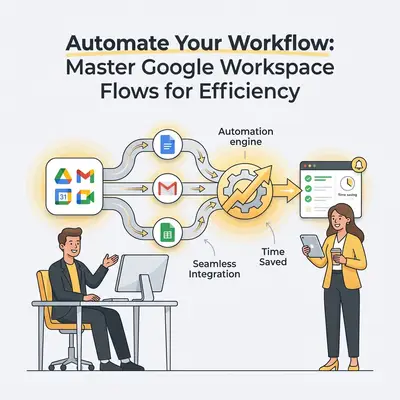
The Power of Automation in Google Workspace
In today's fast-paced business environment, efficiency isn't just a buzzword; it's a critical differentiator. Businesses are constantly seeking ways to streamline operations, reduce manual errors, and free up valuable human capital for more strategic tasks. For organizations that rely heavily on Google Workspace, the suite of powerful tools—Gmail, Drive, Calendar, Docs, Sheets, Meet, and more—presents an incredible opportunity for transformation through automation. By harnessing the power of automated workflows, companies can move beyond mere productivity enhancements to achieve significant operational advantages.
What Google Workspace Automation Means for Your Business
Google Workspace automation refers to the use of technology to perform repetitive tasks and processes across Google's ecosystem without manual intervention. This goes far beyond simple macros; it involves creating intelligent workflows that can trigger actions, transfer data, make decisions, and communicate information seamlessly between different applications, both within Google Workspace and with external systems.
For your business, this translates into tangible benefits:
- Increased Efficiency: Tasks that once took hours, like organizing project files or sending routine reports, can be completed in minutes or even seconds. Work out what your own team spends on administrative tasks each week and that time is what automation gives back.
- Reduced Human Error: Manual data entry, copy-pasting, and repetitive checks are prime candidates for errors. Automation ensures consistency and accuracy, especially in critical processes like financial reporting or client communication.
- Enhanced Productivity: By offloading mundane tasks, your team can dedicate their energy and creativity to higher-value activities that require human judgment, problem-solving, and innovation. This can lead to a more engaged and satisfied workforce.
- Improved Compliance and Data Integrity: Automated workflows can enforce business rules, ensure data is stored correctly, and manage access permissions consistently, contributing to better governance and easier auditing.
- Faster Response Times: Automating responses to common inquiries, instantly assigning leads, or notifying teams of urgent issues can significantly cut down response times, improving customer satisfaction and internal collaboration.
Common Bottlenecks Solved by Automated Workflows
Many everyday business activities, despite seeming minor, aggregate into significant time sinks and operational bottlenecks. These are precisely where automation shines. Consider these common pain points:
- Manual Data Entry and Synchronization: Copying customer details from a Google Form submission into a Google Sheet, then into a CRM, and finally creating a client folder in Drive. Each step is prone to error and takes valuable time.
- Repetitive Communication: Sending welcome emails to new clients, follow-up reminders for outstanding tasks, or routine internal announcements. These often involve similar content with minor personalization.
- Inefficient File Management: Manually creating new project folders for each client, ensuring consistent naming conventions, and setting up appropriate sharing permissions. As teams grow, this quickly becomes a chaotic process.
- Scheduling Conflicts and Coordination: The back-and-forth emails required to find a meeting time that suits multiple attendees, followed by sending calendar invites and distributing agendas.
- Lack of Timely Reporting: Manually compiling data from various sources into reports on a weekly or monthly basis, often leading to delays and outdated information by the time it reaches stakeholders.
- Onboarding and Offboarding Processes: The extensive checklist involved in bringing a new employee on board or transitioning an exiting one, including account setup, access provision, and documentation.
Each of these scenarios represents a prime opportunity for automation to step in, eliminating friction and transforming these cumbersome tasks into smooth, effortless flows.
Uncovering Automation Opportunities Across Google Apps
The true power of Google Workspace automation lies in its ability to connect disparate applications, making them work together as a cohesive system. Let's explore specific opportunities within key Google apps.
Gmail: Streamlining Inbox Management and Communication
Gmail, often the central hub of daily communication, can be a major source of distraction and inefficiency if not managed effectively. Automation can transform your inbox from a chore into a highly organized and responsive communication center.
- Automated Email Sorting and Prioritization: Set up rules to automatically label and archive emails from specific senders or with certain keywords. For example, all emails containing "invoice" could be moved to a dedicated "Accounts Payable" folder, and those from key clients automatically flagged as "Important." This ensures critical messages are never missed and your primary inbox remains focused.
- Templated Responses and Auto-Replies: For frequently asked questions or common inquiries, create automated responses. A new lead inquiry might trigger an immediate "Thank you for your interest" email, providing initial resources while notifying the sales team. For support tickets, a system could categorize the email and send a confirmation with an expected response time.
- Data Extraction and Action Triggering: AI-powered automation can scan incoming emails for specific information (e.g., order numbers, dates, client names) and use that data to trigger subsequent actions. An email confirming a new subscription might automatically update a Google Sheet, add the client to a mailing list in a marketing tool, and create a task in Google Tasks for a sales representative to follow up.
- Attachment Management: Automatically save specific email attachments (e.g., PDF invoices, expense receipts) directly to designated folders in Google Drive, maintaining organization and ensuring no important documents are lost.
Google Drive: Automating Document Organization and Access
Google Drive is the backbone of collaborative document management. Automation here ensures that files are always where they need to be, accessible to the right people, and compliant with your organizational structure.
- Automated Folder Creation and Structure: When a new client is onboarded or a new project begins, automation can instantly create a pre-defined folder structure in Google Drive (e.g.,
/Clients/Client Name/Project_X/Documents,/Design,/Contracts), saving setup time and ensuring consistency across all projects. - File Naming Conventions and Tagging: Implement workflows that enforce consistent file naming (e.g.,
[Project Name]_[Document Type]_[Date]) and automatically apply metadata or tags to documents upon upload. This makes searching and retrieving files significantly faster and more accurate. - Permission Management: Automatically set sharing permissions for new files or folders based on user roles or project teams. When a new project folder is created, it can automatically grant "Viewer" access to the entire project team and "Editor" access to specific managers, simplifying collaboration and enhancing security.
- Document Versioning and Archiving: Automate the process of archiving older versions of documents or moving completed project files to an archive folder after a project's closure date. This keeps active Drive spaces clutter-free and ensures compliance with data retention policies.
- Notification on File Changes: Receive automated notifications (via Gmail, Slack, or Google Chat) when specific files or folders are updated, new documents are added, or when a document reaches a certain stage in a review process.
Google Calendar & Meet: Optimizing Scheduling and Event Logistics
Scheduling meetings and managing events can consume a surprising amount of administrative time. Automation transforms this often-tedious process into a smooth, self-sustaining operation.
- Intelligent Meeting Scheduling: Integrate with tools that allow external parties to book meetings directly on your calendar based on your availability, eliminating the back-and-forth emails. Once a slot is chosen, the system automatically creates a Google Calendar event, generates a Google Meet link, and sends out invitations.
- Automated Reminders and Follow-ups: Set up workflows to send automated reminders before meetings (e.g., 24 hours and 1 hour prior) to all attendees. After a meeting, a follow-up email can be sent with meeting notes, action items, and relevant documents, often automatically extracted or linked from the meeting's description.
- Resource Booking: For organizations with shared resources (conference rooms, equipment), automation can manage booking requests, check availability, and confirm reservations, preventing double-bookings and streamlining asset allocation.
- Event Creation from Data: If you run regular events or webinars, automation can read event details from a Google Sheet (e.g., date, time, topic, speakers) and automatically create corresponding Google Calendar events, complete with Meet links and descriptions.
- Agenda Distribution and Preparation: Ahead of important meetings, an automated flow can gather relevant documents from a shared Drive folder, compile them into a Google Doc agenda, and share it with attendees, ensuring everyone is prepared.
Essential Tools and Approaches for Google Workspace Automation
Successfully automating your Google Workspace workflows requires the right tools and a clear understanding of their capabilities. From custom scripting to no-code platforms and advanced AI solutions, there's a spectrum of options to fit various needs and technical proficiencies.
Leveraging Google Apps Script for Custom Solutions
Google Apps Script is a JavaScript-based cloud scripting language developed by Google. It allows you to extend and customize Google Workspace applications, building powerful automations directly within the Google ecosystem. It's an excellent choice for highly specific, internal automations that primarily involve Google apps.
How it works: You write code (or adapt existing scripts) that interacts directly with Google's APIs. For example, you can write a script that:
- Automatically sends emails from a specific Gmail account based on data in a Google Sheet.
- Creates new Google Docs or Sheets based on templates, populating them with dynamic data.
- Monitors a Google Drive folder for new files and triggers an action (e.g., sends a notification, moves the file).
- Adds custom menus and functions to Google Sheets, Docs, or Forms.
Benefits: Deep integration with Google Workspace, highly customizable, cost-effective for users already within the Google ecosystem, and no external hosting required. Considerations: Requires coding knowledge (JavaScript), can be more time-consuming for complex multi-app integrations, and lacks native connections to many external non-Google applications.
Integrating with No-Code Platforms (e.g., Zapier, Make.com)
No-code automation platforms like Zapier and Make.com (formerly Integromat) are game-changers for businesses seeking to connect Google Workspace with a vast array of external applications without writing a single line of code. They operate on an "if this, then that" or visual flowchart logic, making automation accessible to a broader audience.
How they work: These platforms provide a user-friendly interface to build "zaps" (Zapier) or "scenarios" (Make.com).
- Triggers: An event in one app (e.g., "New row in Google Sheet," "New email in Gmail with attachment").
- Actions: A subsequent event in another app (e.g., "Create item in Asana," "Send message in Slack," "Add event to Google Calendar").
- Steps/Modules: You define a sequence of triggers, actions, and sometimes conditions or filters.
Benefits: Connects Google Workspace to thousands of external apps (CRMs, marketing platforms, accounting software, project management tools), highly intuitive visual builders, rapid deployment of workflows. Considerations: Cost scales with usage (number of tasks/operations), some very complex logic might require workarounds or multiple "zaps/scenarios," and they typically handle structured data best.
AI-Powered Automation Platforms (like Evalics) for Advanced Flows
While Apps Script offers deep integration and no-code tools provide broad connectivity, AI-powered automation platforms, such as Evalics, represent the next frontier. These platforms leverage artificial intelligence, including natural language processing (NLP), machine learning (ML), and intelligent document processing (IDP), to handle tasks that traditional automation struggles with. This is particularly crucial for processes involving unstructured data, complex decision-making, and predictive capabilities.
How Evalics elevates Google Workspace automation:
- Intelligent Data Extraction: Instead of relying on rigid rules, Evalics can use AI to understand and extract specific information from unstructured documents (PDFs, images of invoices, email bodies, scanned contracts) stored in Google Drive or received in Gmail. For example, automatically pulling vendor names, amounts, and dates from a diverse set of incoming invoices.
- Smart Decision-Making: Evalics can implement workflows that adapt based on context or learned patterns. For instance, prioritizing certain customer support emails based on sentiment analysis or historical urgency, or routing approval requests to different managers based on the request's content or value.
- Natural Language Interaction: Integrate with AI models (like Gemini) to summarize long email threads, draft personalized email responses, or even generate initial content for Google Docs based on prompts.
- Predictive Automation: Based on historical data and real-time inputs, Evalics can predict future needs or potential issues. Imagine automatically suggesting meeting times that are most likely to be accepted by attendees, or proactively alerting a sales rep when a client shows signs of churn based on their interaction patterns in Gmail and Drive.
- End-to-End Process Orchestration: Evalics can orchestrate complex, multi-step business processes that span across Google Workspace, external CRMs, ERPs, and specialized industry software, handling both structured and unstructured data seamlessly. This enables truly hands-off, intelligent operations.
Benefits: Solves complex automation challenges, handles unstructured data, provides intelligent decision support, offers predictive capabilities, and enables highly sophisticated end-to-end process automation. Considerations: Requires expertise to configure and optimize AI models, and might be overkill for very simple, rule-based automations. However, for organizations looking to truly innovate and gain a competitive edge, platforms like Evalics are indispensable.
Practical Use Cases: Transformative Google Workspace Flows
Let's look at concrete examples of how these tools can be combined to create powerful, transformative workflows within Google Workspace.
Automated Client Onboarding and Project Setup
Manual client onboarding can take hours, involve multiple departments, and is prone to missed steps. An automated flow streamlines this critical first impression.
Scenario: A new client signs a contract, and their details are entered into your CRM (e.g., Salesforce, HubSpot). Automated Flow:
- Trigger: New client record created or status updated to "Onboarded" in CRM.
- Action (Google Drive): Automation creates a dedicated client folder in Google Drive, along with a predefined subfolder structure (e.g., "Contracts," "Deliverables," "Communication"). It then copies a "Welcome Pack" Google Doc template into the new folder and populates it with client-specific details.
- Action (Gmail): An automated welcome email is sent to the client, introducing their account manager, providing links to the shared Drive folder, and outlining next steps.
- Action (Google Calendar/Meet): A recurring weekly check-in meeting is scheduled with the client and assigned team members, complete with a Google Meet link.
- Action (Google Sheets/Tasks): A new row is added to a "Client Onboarding Status" Google Sheet, and a series of onboarding tasks (e.g., "Schedule Kick-off," "Gather Requirements," "Initial Setup") are created in Google Tasks and assigned to the relevant team members.
- Action (Internal Notification): The client success team is notified via Google Chat or Slack about the new client and their onboarding progress.
This flow saves meaningful time per client, minimizes errors, and ensures a consistent, professional onboarding experience every time.
Dynamic Report Generation and Distribution Schedules
Many businesses spend countless hours manually compiling data from various sources into reports. Automation can transform this into an effortless, scheduled process.
Scenario: A marketing team needs weekly reports on campaign performance, pulling data from Google Analytics, Google Ads, and CRM data stored in Google Sheets. Automated Flow:
- Trigger: Scheduled weekly (e.g., every Monday at 9:00 AM).
- Action (Google Sheets): The automation pulls the latest campaign performance data from Google Analytics (via an API or a linked sheet) and relevant sales data from the CRM, consolidating it into a master Google Sheet.
- Action (Google Docs/Slides): Using a pre-designed template, the system dynamically generates a new Google Doc (for detailed analysis) and/or Google Slides presentation (for executive summary), populating it with charts and key metrics directly from the updated Google Sheet.
- Action (Gmail): The generated report (PDF version of the Doc/Slides) is attached to an email, along with a summary of key insights, and sent to the marketing manager, executive team, and other stakeholders.
- Action (Google Drive): The generated report is automatically saved into a "Weekly Reports" folder in Google Drive, timestamped and properly named for easy archiving and access.
This ensures timely, accurate reports without manual effort, freeing analysts and managers from hours of copy-paste work every week.
Intelligent Lead Management and Follow-up Sequences
Converting leads into customers requires timely engagement and consistent follow-up. Automation, especially with AI, can make this process incredibly intelligent and effective.
Scenario: A new lead submits a contact form on your website (data goes to Google Sheet) or interacts with your chatbot. Automated Flow:
- Trigger: New row added to "Website Leads" Google Sheet or new chat interaction marked as "Qualified."
- Action (Google Sheets/CRM): The lead's data is immediately added to a CRM (if not already there) and enriched with public data where available.
- Action (AI-Powered Analysis - Evalics): Evalics analyzes the lead's submitted information (e.g., company size, role, expressed needs) and potentially their website behavior (if integrated) to score the lead and determine the optimal follow-up strategy. This could include using NLP to categorize their inquiry.
- Action (Gmail):
- For high-priority leads, an immediate, personalized email drafted by AI (using a template but inserting relevant details and addressing specific concerns from their inquiry) is sent, introducing a sales representative.
- For medium-priority leads, a more general introductory email is sent, inviting them to book a demo via a calendar link.
- Action (Google Calendar/Tasks):
- For high-priority leads, a task is created in Google Tasks and assigned to the relevant sales rep, prompting them to call the lead within 30 minutes.
- For medium-priority leads, the system monitors if they book a demo. If no demo is booked within 24 hours, a reminder email is automatically sent.
- Action (Internal Notification): The sales team receives a Google Chat notification with the lead's details and their priority score, allowing them to focus on the most promising prospects.
This intelligent lead management system significantly improves lead response times, optimizes sales team focus, and helps boost conversion by ensuring timely and relevant engagement.
Designing and Implementing Your First Automated Workflow
Starting with automation might seem daunting, but breaking it down into manageable steps makes it approachable. The key is to begin small, learn, and iterate.
Step 1: Identify a Repetitive Task and Define the Goal
Look for tasks that are:
- Repetitive: Performed frequently (daily, weekly).
- Rule-based: Follow a predictable sequence of steps.
- Time-consuming: Take significant time away from higher-value work.
- Prone to error: Where manual entry often leads to mistakes.
Example Task: Manually saving all PDF invoices received via email to a specific Google Drive folder and updating a Google Sheet with invoice details. Goal: Automatically extract invoice details from email attachments, save the PDFs to Drive, and log the data in a Google Sheet, saving time every day and eliminating manual data entry errors.
Step 2: Map Out the Workflow Logic and Data Flow
Before touching any tools, visualize the process. Draw a simple flowchart or write down the steps logically.
Example Workflow Map:
- Trigger: New email received in Gmail (from specific senders, with "invoice" in subject or body, and a PDF attachment).
- Action (Evalics/AI): Extract PDF attachment from email.
- Action (Evalics/AI): Use AI (Intelligent Document Processing) to extract key data from the PDF: Invoice Number, Vendor Name, Amount, Date, Due Date.
- Action (Google Drive): Save the extracted PDF to a specific Google Drive folder (e.g.,
/Invoices/2024/Vendor Name/Invoice_Number.pdf). - Action (Google Sheets): Add a new row to the "Accounts Payable" Google Sheet with: Invoice Number, Vendor Name, Amount, Date, Due Date, Link to Drive PDF.
- Action (Gmail - Optional): Send a confirmation email to the sender that the invoice has been received and processed.
- Action (Internal Notification - Optional): Notify the accounts team via Google Chat that a new invoice has been logged.
Step 3: Choose the Right Tool and Build Your Automation
Based on your mapped workflow, select the most appropriate tool.
- Google Apps Script: If your task is purely within Google Workspace, involves specific data manipulation, and you have some coding comfort.
- For the invoice example: Apps Script could save attachments and update Sheets, but extracting structured data from an unstructured PDF would be very challenging without advanced libraries or external APIs.
- No-Code Platform (Zapier/Make.com): If you need to connect Google Workspace with a few external structured data sources, and the logic is straightforward "if-then."
- For the invoice example: A no-code platform could save attachments and update Sheets, but again, intelligently parsing the PDF for specific fields would likely require a premium feature or integration with another specialized tool.
- AI-Powered Automation Platform (Evalics): If your task involves unstructured data (like PDFs, emails, natural language), requires intelligent decision-making, or needs to orchestrate complex end-to-end processes involving multiple systems.
- For the invoice example: This is where Evalics excels. It can natively handle the AI-driven data extraction from the PDF, then seamlessly integrate with Gmail, Google Drive, and Google Sheets, fulfilling all aspects of the desired workflow with high accuracy.
Once you've chosen your tool, follow its specific instructions to build and test your automation. Start by running it with test data, verify outputs, and iterate until it works reliably.
Scaling Your Automation with AI and Advanced Strategies
Once you've mastered basic Google Workspace automation, the next step is to leverage AI and advanced strategies to build truly intelligent and resilient systems that drive competitive advantage.
Predictive Automation for Proactive Decision Making
Predictive automation uses AI to analyze historical data and current trends to anticipate future events or needs, triggering actions before they become problems.
- Proactive Customer Support: Based on a customer's activity in Google Workspace (e.g., frequent visits to help documentation in Drive, specific keywords in support emails via Gmail), AI can predict potential issues or churn risks. This could trigger an automated task for a customer success manager to proactively reach out with resources or a personalized check-in call.
- Dynamic Resource Allocation: For project managers, AI can analyze past project timelines and team member availability (from Google Calendar) to suggest optimal resource allocation for upcoming tasks, flagging potential bottlenecks before they occur.
- Intelligent Inventory Management: If you manage inventory via Google Sheets, AI can predict demand fluctuations based on sales data, seasonality, and external factors, automatically generating purchase orders or alerts in advance.
Leveraging AI for Smart Data Extraction and Categorization
The ability of AI to understand and process unstructured data is a game-changer for many business processes, especially those involving communication and documentation.
- Intelligent Email Processing: Beyond simple keyword filtering, AI can perform sentiment analysis on incoming Gmail messages to prioritize urgent or dissatisfied customer inquiries, route them to the appropriate department, or even draft empathetic preliminary responses. It can also extract entities (names, dates, locations) from email bodies to populate calendar events or CRM fields.
- Automated Document Analysis: For legal, HR, or finance departments, Evalics can analyze documents stored in Google Drive—contracts, resumes, legal filings—to extract key clauses, identify compliance issues, or categorize documents by type and content, making large archives instantly searchable and actionable. Imagine automatically redacting sensitive information from a document before sharing, based on AI's understanding of its content.
- Meeting Transcription and Summary: Integrate AI with Google Meet to transcribe meetings in real-time, then generate concise summaries of discussions, action items, and key decisions, automatically distributing them via email or adding them to a Google Doc for easy access.
Integrating Google Workspace with External Systems for End-to-End Processes
While Apps Script and no-code tools connect Google Workspace with many external apps, AI-powered platforms like Evalics excel at orchestrating complex, end-to-end business processes that span across a diverse technological landscape, often handling edge cases and data transformations with greater intelligence.
- Seamless CRM to ERP Integration: When a sale closes in your CRM, Evalics can trigger a sequence that creates a new client record in your accounting software (ERP), generates an invoice in Google Docs, updates inventory levels in a separate system, and notifies the fulfillment team via Slack—all while ensuring data consistency across every platform.
- Automated Marketing Campaign Management: Integrating Google Sheets (for audience lists) with email marketing platforms and social media schedulers. AI can optimize sending times, personalize content based on user segments, and analyze campaign performance data from Google Analytics to suggest real-time adjustments.
- HR Onboarding and Compliance: Beyond setting up Drive folders, an AI-powered flow can integrate with HRIS systems to initiate background checks, manage compliance documents (parsing and filing legal forms in Drive), and ensure all necessary training modules are assigned and tracked.
These advanced strategies elevate automation from simply doing tasks faster to enabling strategic decision-making and transforming core business functions.
Best Practices for Sustainable Google Workspace Automation
Building effective automations is one thing; ensuring they remain reliable, secure, and beneficial in the long term requires adherence to best practices.
Security, Permissions, and Data Privacy Considerations
Automating access to sensitive data and systems requires a rigorous approach to security.
- Principle of Least Privilege: Grant only the necessary permissions for an automation to function. If a script only needs to read a Google Sheet, don't give it editing access to your entire Drive. Regularly review and revoke unnecessary permissions.
- Secure API Keys and Credentials: Never hardcode sensitive information (like API keys or passwords) directly into scripts. Use secure methods for storing and accessing credentials, such as Google Cloud Secret Manager or environment variables within automation platforms.
- Data Residency and Compliance: Be aware of where your data is processed and stored, especially if using third-party automation tools. Ensure compliance with data privacy regulations like GDPR, CCPA, or HIPAA.
- Regular Security Audits: Periodically review your automated workflows and their access permissions. As your team and systems evolve, old permissions can become security vulnerabilities.
Documentation and Maintenance for Long-Term Reliability
An undocumented automation is a ticking time bomb. Proper documentation ensures continuity and maintainability.
- Clear Workflow Diagrams: For every significant automation, create a visual diagram (flowchart) that clearly outlines the trigger, sequence of steps, decision points, and actions. This helps quickly understand the logic.
- Detailed Explanations: Document the purpose of each automation, who owns it, how it works (including any specific nuances or workarounds), and what dependencies it has. For Apps Script, use clear comments within the code.
- Version Control: For Apps Script projects, use Google Apps Script's built-in version control or integrate with external systems like GitHub for collaborative development and change tracking.
- Contact Information: Clearly state who built the automation and who is responsible for its maintenance and troubleshooting.
- Scheduled Reviews: Plan regular reviews (e.g., quarterly, semi-annually) of all active automations to ensure they are still relevant, efficient, and functioning correctly.
Continuous Improvement: Monitoring and Optimizing Your Flows
Automation is not a "set it and forget it" activity. It requires ongoing attention to remain effective.
- Error Logging and Alerts: Implement robust error handling within your automations. Configure systems to send immediate alerts (via email, Google Chat, or Slack) when an automation fails or encounters an unexpected condition.
- Performance Monitoring: Track key metrics for your automations: how often they run, how much time they save, their success rate, and any performance bottlenecks. This helps justify their existence and identify areas for improvement.
- Gather User Feedback: Regularly solicit feedback from the users who interact with or benefit from your automations. Are they saving time? Are there new pain points that could be addressed?
- Iterate and Refine: Based on monitoring data and user feedback, be prepared to refine and optimize your flows. This could involve tweaking logic, integrating new features, or even redesigning entire processes. The business environment changes, and your automations should adapt with it.
By embracing these best practices, you can ensure your Google Workspace automation initiatives are not just powerful but also sustainable, secure, and continuously delivering value to your organization.
Ready to transform your Google Workspace experience from mundane to magnificent? Start by identifying that one repetitive task that drains your time and creativity. Map it out, choose the right tool, and build your first automation. For advanced workflows, intelligent data handling, and comprehensive end-to-end process orchestration powered by AI, explore how Evalics can elevate your automation strategy. Visit evalics.com today for a personalized consultation and unlock the full potential of your business operations.