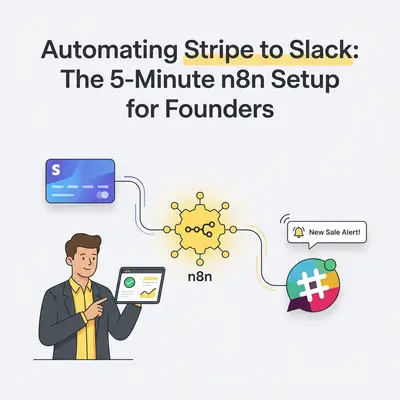
You are refreshing the Stripe dashboard again. It is a terrible habit. Every founder does it. You want to see if that big client finally paid their invoice or if your new marketing campaign is driving subscriptions.
But acting as a human notification system wastes your time. It also delays your team. When a new customer signs up, your onboarding team needs to know instantly. When a massive annual plan closes, your sales team deserves to celebrate right away.
Connecting Stripe to Slack solves this. It builds momentum. It keeps your team informed. And best of all, you can build it in n8n in under five minutes.
Here is the exact blueprint to build a reliable, cost-effective payment notification system.
Why Build This in n8n?
If you want to stop paying for Zapier, this is the perfect first project.
Task-based automation tools charge for every action step a workflow performs, so a busy sales day can use up a monthly quota. n8n Cloud meters differently: it counts one execution per workflow run, however many steps the run contains, and each plan includes a fixed number of executions per month (2,500 on the Starter plan when we checked on October 23, 2026). The self-hosted Community Edition has no execution meter at all. Check the current pricing pages before you decide.
Reality Check: Pricing models differ, so estimate your own volume. A flow like this one fires once per payment: that is one n8n execution per payment, or about one Zapier task (the Slack step) per payment if you add no other steps. Multiply by your monthly payment count and compare it with each plan's limit.
Prerequisites: What You Need
Before you start dragging nodes onto the canvas, gather your tools. You need three things:
- An active n8n instance. (Cloud or self-hosted).
- Stripe API Access. You need permission to view API keys in your Stripe dashboard.
- Slack Workspace Admin Rights. You need permission to add apps or webhooks to your Slack channels.
Ready? Let's build.
Step 1: Set Up the Stripe Trigger
The first node in your workflow is the trigger. It listens for an event to happen in the real world.
- Open your n8n canvas.
- Click Add first step.
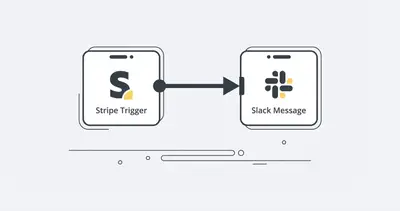
- Search for Stripe and select the Stripe Trigger node.
- Set up your credentials. You will need your Stripe API key. You can find this in your Stripe Dashboard under the "Developers" tab.
- Select the Event you want to track.
For standard payment notifications, select charge.succeeded.
Pro Tip: Stripe handles amounts in cents. A $100 payment will appear in n8n as
10000. We will format this in the next step so it reads correctly in Slack.
Click Listen for Event in n8n, then go to Stripe and create a test payment. n8n will capture the data payload.
Step 2: Format the Data (Optional but Recommended)
You can send raw data directly to Slack, but it looks messy. Raw JSON does not motivate a sales team. We want a clean, readable message.
Add a Set node or a Code node after your Stripe trigger to clean up the data.
If you use a basic Code node, set its mode to Run Once for Each Item (the $input.item helper below is only available in that mode), and you can format the currency easily:
// Convert cents to dollars
const rawAmount = $input.item.json.data.object.amount;
const formattedAmount = (rawAmount / 100).toFixed(2);

return {
  json: {
    amount: formattedAmount,
    customerEmail: $input.item.json.data.object.billing_details.email,
    receiptUrl: $input.item.json.data.object.receipt_url
  }
};
This simple step ensures your Slack message says "$500.00" instead of "50000". Small formatting details make your team trust the automation.
If you are new to n8n logic, check out our n8n for beginners blueprint to understand how data flows between nodes.
Step 3: Configure the Slack Node
Now, we send the notification to your team.
- Add a new node and search for Slack.
- Connect your Slack account. (n8n makes this easy with OAuth2).
- Select the Post Message action.
- Choose your channel. Create a dedicated channel like
#sales-winsor#stripe-alerts. - Craft your message using expressions.
Click the gear icon next to the "Text" field in the Slack node to add an expression. You can format it like this:
💰 *New Payment Received!*
*Amount:* ${{ $json.amount }}
*Customer:* {{ $json.customerEmail }}
<{{ $json.receiptUrl }}|View receipt>
Quick Win: Use emojis in your Slack formatting. Emojis make automated messages highly scannable. A quick glance at a 💰 or 🚨 tells the team exactly what the message means without reading it.
Step 4: Test and Deploy
Never activate a workflow without testing the entire chain.
Run a test execution in n8n. Fire another test payment through Stripe. Within a few seconds, your Slack channel should light up with a beautifully formatted message.
If it looks good, toggle the workflow from Inactive to Active.
You just built a working notification system in about five minutes. You can now close that Stripe tab and get back to growing your business.
Advanced Tweaks for Scaling Founders
Once you master the basic Stripe-to-Slack connection, you can expand it. According to the 80/20 rule of business automation, focus on upgrades that save time or drive immediate action.
Route VIP Payments
Not all payments are equal. A $10 subscription can go to the general #alerts channel. A $10,000 enterprise contract should alert leadership immediately.
Add an IF Node or Switch Node between Stripe and Slack. Set a condition: If Amount is greater than $5,000.
- True Path: Send a message to
#executive-teamtagging the VP of Sales. - False Path: Send standard message to
#general-sales.
Add Customer History
When a payment comes in, you can add an HTTP Request node to query your CRM (like HubSpot or Salesforce). Pull the customer's total Lifetime Value (LTV) or company name. Append this data to your Slack message.
Now, when your team sees a payment, they instantly know if it is a brand new client or a loyal customer making their fifth purchase.
Handle Failed Payments
Do not just celebrate the wins. Automate the recovery process.
Create a second workflow listening for the charge.failed event in Stripe. Send these alerts directly to your Customer Success team's private channel. Include a direct link to the customer's Stripe profile so your team can reach out and update the payment method instantly.
Stop coding API integrations from scratch. These visual webhooks give you complete operational awareness without writing complex backend scripts.
The Bottom Line
Information needs to move faster than your competitors. When payment data stays trapped inside Stripe, your team operates in the dark.
By pushing financial events directly into the communication channels your team already uses, you eliminate silos. You boost morale. You enable instant reactions to both massive wins and failed transactions.
This five-minute n8n setup is the perfect gateway into business automation. It proves that you do not need expensive software or a developer team to build enterprise-grade operations.
Ready to scale your business workflows even further? Book a demo with Evalics today to see how custom AI and automation architecture can transform your daily operations. Book a demo with Evalics here.
Related Resources
- Stop Paying for Zapier 5 n8n Workflows Every Agency Needs
- n8n for Beginners Blueprint Build First Workflow
- 80 20 Rule Business Automation What to Automate First
- Stop Coding API Integrations How n8n Webhooks Save Time
Official Sources
- Stripe API Documentation: Handling Webhooks
- Slack API: Sending Messages with Incoming Webhooks
- n8n Official Documentation: Stripe Node Overview
By Kevin Michael Schindler, AI Automation Expert at Evalics