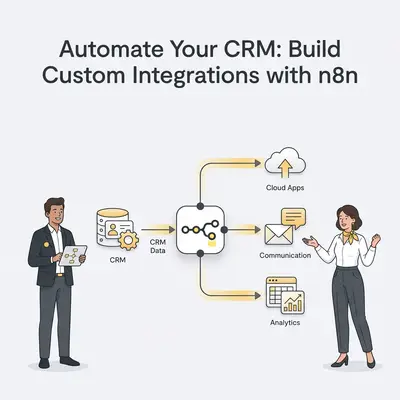
n8n is a low-code workflow automation tool that allows small businesses to connect their CRM to any other software without expensive developer fees. By using a node-based visual interface, you can create custom data flows that sync leads, update customer records, and trigger notifications automatically. This process saves teams an average of 10 hours of manual data entry every week, according to internal Evalics workflow audits.
Why Should Small Businesses Use n8n for CRM Integrations?
Small businesses often struggle with fragmented data across multiple platforms. n8n solves this by acting as the central nervous system for your tech stack. Unlike rigid, pre-built integrations, n8n allows you to build custom logic that fits your specific business processes.
By automating manual tasks, you reduce human error and ensure your CRM remains the "single source of truth." Whether you need to sync a new lead from a website form to HubSpot or push a closed deal to your accounting software, n8n handles the heavy lifting. This approach eliminates the need for costly custom software development while maintaining full control over your data.
What Are the Prerequisites Before You Start Building?
Before building your first integration, ensure you have an active n8n instance and API access credentials for your CRM and target applications. You must have a clear map of your data—specifically which fields need to move from point A to point B—to avoid errors and ensure your automation runs smoothly from the start.
You should also verify that your CRM’s API is enabled. Most modern CRMs like Pipedrive, Salesforce, or HubSpot require you to generate an API key or an OAuth token within your account settings. Without these credentials, n8n cannot authenticate or exchange data with your platform.
Reality Check: Do not attempt to build complex workflows without first mapping your data fields on paper. Knowing exactly which fields (e.g., "Email," "Company Name," "Lead Source") need to map to the destination system prevents hours of troubleshooting later.
How Do You Build Your First Custom CRM Integration in 7 Steps?
Building a custom integration involves mapping your data triggers to specific actions within your CRM ecosystem. By following a structured approach, you ensure that your workflows are scalable, error-resistant, and easy to maintain as your business grows.
- Define the Trigger: Select the event that starts the workflow, such as a "New Lead" in your CRM or a "Form Submission" on your website.
- Authenticate Your Apps: Use the Credentials manager in n8n to securely connect your CRM API keys or OAuth tokens.
- Fetch and Parse Data: Use an HTTP Request node or a pre-built CRM node to pull the necessary data fields into the workflow.
- Transform the Data: Use the "Edit Fields" or "Code" node to format, filter, or clean the data to match your destination system’s requirements.
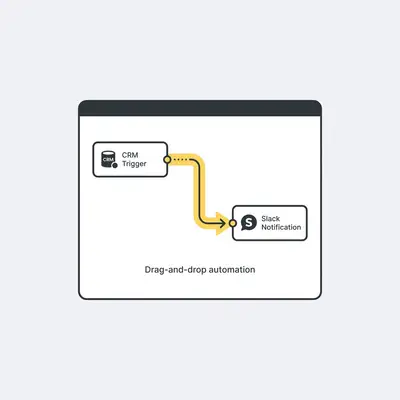
- Map to Destination: Connect the output to your secondary tool (e.g., Slack, Email, or Accounting software) and map the specific data points.
- Test the Workflow: Run the workflow in "Test" mode to verify that data moves correctly without affecting your live production environment.
- Activate and Monitor: Toggle the workflow to "Active" and monitor the execution logs for any potential errors or failed runs.
What Are the Common Pitfalls to Avoid During Setup?
The most common pitfalls include failing to handle API rate limits, neglecting error handling, and creating infinite loops between systems. To avoid these, always implement "Error Trigger" nodes to alert you when a workflow fails. You must also ensure your data mapping is strictly validated before pushing information into your live CRM database.
Pro Tip: Always use a "Wait" node or "Batch" node when dealing with high-volume data to prevent hitting your CRM’s API rate limits.
How Do You Maintain and Scale Your Automations?
Maintaining automations requires regular audits of your workflow logs and periodic updates to your API credentials. As your business scales, you should transition from simple linear workflows to modular, reusable sub-workflows. This allows you to update a single process once and have those changes reflect across all your integrated systems.
![_ [GRAPH] Column chart. Before Automation - 10 Hours/Week. After Automation - 1 Hour/Week. Chart title: Weekly Time Spent on Data Entry at top. Alt text: Column chart showing time savings from automation: 10 hours before vs 1 hour after](/blogs/build_custom_crm/-graph-column-chart-before-automation-10-hoursweek-400w.webp)
What Are the Best Practices for Data Security?
Data security is paramount when handling customer information. Always use environment variables for API keys rather than hardcoding them into your workflows. Additionally, ensure that your n8n instance is protected by strong authentication, restrict access to only necessary team members, and regularly rotate your API tokens to minimize the risk of unauthorized access.
Key Insight: We recommend using n8n’s built-in credential encryption and hosting on private infrastructure to maintain full control over your customer data.
Integration Checklist
- API keys and credentials gathered for all platforms.
- Workflow trigger event identified and tested.
- Data mapping verified for all required fields.
- Error handling nodes added to the workflow.
- Workflow tested in a sandbox environment.
- Execution logs reviewed for successful data transfer.
- Workflow set to "Active" status.