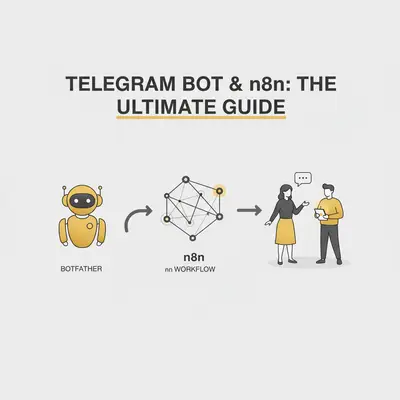
You missed that critical lead because it was buried in your inbox. By the time you saw the email, the prospect had already moved on to a competitor.
Email is for documentation. Instant messaging is for action.
Connecting Telegram to n8n is one of the highest-ROI automations you can build. It costs nothing, takes 10 minutes to set up, and delivers alerts instantly to your phone. The gateway to this automation is BotFather, Telegram's central tool for managing bots.
Here is how to use BotFather to generate your credentials and build your first n8n Telegram workflow.
What is BotFather?
BotFather is exactly what it sounds like: the bot that rules them all. It is an official bot provided by Telegram that allows you to create new bots, manage existing ones, and—most importantly—revoke or generate API tokens.
You do not need to know Python or JavaScript to "build" a bot here. In the context of n8n automation, the "bot" is simply an identity that your workflow uses to send messages. n8n handles the logic; the bot just delivers the mail.
Key Insight: You aren't coding a bot from scratch. You are creating a digital "puppet" that n8n will control to send messages into your private chats or team groups.
Step 1: Create Your Bot with BotFather
The setup process happens entirely inside the Telegram app. You can do this on your phone or desktop.
- Open Telegram and search for @BotFather. Look for the blue verified checkmark.
- Click Start to activate the bot.
- Type the command
/newbotand hit send. - Name your bot: This is the display name (e.g., "Agency Lead Alerts").
- Choose a username: This must be unique and end in
bot(e.g.,Agency_Lead_2025_bot).
Once successful, BotFather will send you a message containing your HTTP API Token.
Pro Tip: Treat this token like a password. If anyone gets this token, they can control your bot and read its messages. If you accidentally share it, use the
/revokecommand in BotFather immediately to generate a new one.
Step 2: Configure Credentials in n8n
Now that you have your token, you need to store it securely in n8n.
- Open your n8n workflow editor.
- Click Credentials in the sidebar.
- Select Add Credential and search for Telegram API.
- Paste the Access Token you received from BotFather.
- Name the credential (e.g., "My Alert Bot") and click Save.
Your n8n instance is now authorized to act as that bot.
Step 3: Finding the Chat ID (The Tricky Part)
This is where 90% of users get stuck.
To send a message, n8n needs to know where to send it. This is defined by a Chat ID. However, bots cannot initiate conversations with users due to anti-spam rules. You must message the bot first.
How to get your Chat ID:
- Go back to Telegram and search for your new bot's username.
- Click Start and send a simple message like "Hello".
- In n8n, add a Telegram Trigger node to your canvas.
- Set the Updates to "Message".
- Click Listen for Test Event.
- Go to Telegram and send another message to your bot.
n8n will catch this message. Look at the output JSON data. Under result > message > chat, you will see an id number (e.g., 123456789).
Copy this number. This is your destination address.
Reality Check: If you want to send messages to a Group, you must add the bot to the group first. Group Chat IDs usually start with a negative sign (e.g.,
-987654321). Ensure you copy the negative sign too.
Step 4: Building the Notification Workflow
Now you have the Token (the identity) and the Chat ID (the destination). Let's build a simple alert system.
We will create a workflow that sends a Telegram message whenever a critical event happens (like a form submission or a failed backup).
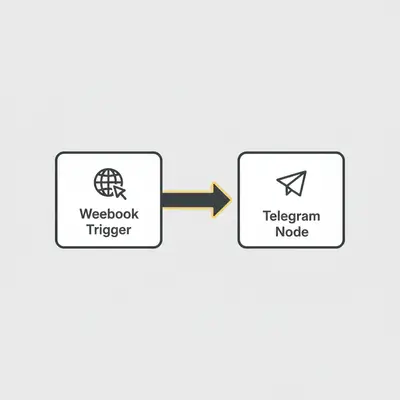
The Setup:
- Trigger: Add a Webhook node or a Schedule node (for testing).
- Action: Add a Telegram node.
- Operation: Select Send Message.
- Chat ID: Paste the ID number you found in Step 3.
- Text: Enter your alert message. You can drag and drop dynamic data from previous nodes here.
- Example: "🚨 New Lead: [Name] just booked a call!"
Quick Win: Telegram supports Markdown and HTML parsing. Use double asterisks
**text**for bold text to make key metrics stand out in your alerts.
Why Telegram Beats Email for Alerts
You might be wondering if it's worth setting this up if you already have email notifications. The difference lies in response time and noise reduction.
Emails get buried in folders. Telegram notifications are push alerts that demand attention.
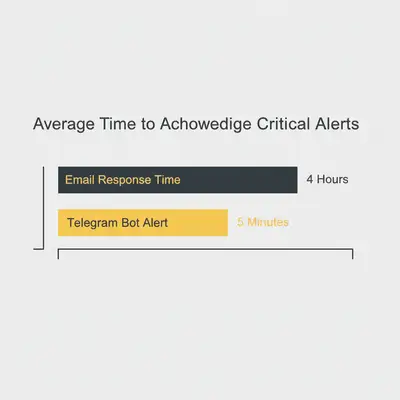
When you move operational alerts to Telegram, you clear your inbox for deep work and external communication. You stop checking your email "just in case" something broke.
Advanced BotFather Commands
As you scale your automation, you may need to tweak your bot's settings. Here are the BotFather commands you will use most often:
/setuserpic: Upload a logo for your bot. This makes your alerts look professional, especially if sending to a team group./setdescription: Changes the text people see before they click Start. Useful for explaining what the bot does./setcommands: Creates a menu of commands (like/statusor/help) that users can click. You can then configure n8n to listen for these specific commands to trigger reports.
Troubleshooting Common Errors
Even with a simple setup, things can go wrong. Here is how to fix the most common issues:
1. Error: "Forbidden: bot was blocked by the user"
Cause: You (or the user) stopped the bot or deleted the chat. Fix: Search for the bot again and click Start.
2. Error: "Bad Request: chat not found"
Cause: The Chat ID is incorrect. Fix: Double-check the ID. If it is a group, ensure the bot is still a member of that group.
3. Error: "Unauthorized"
Cause: The API token is wrong or was revoked.
Fix: Use /token in BotFather to check your current token and update your n8n credentials.
Summary
Automating notifications with BotFather and n8n is a low-effort, high-impact win.
- Use BotFather to create the bot and get the token.
- Use n8n Credentials to store the token securely.
- Message the bot to capture your Chat ID.
- Route your critical alerts away from email and into Telegram.
Once you master sending text, you can expand to sending files, invoices, or even creating interactive menus. But it all starts with that first /newbot command.
Official Sources
By Kevin Michael Schindler, AI Automation Expert at Evalics.
Ready to automate your team's notifications? Book a demo with Evalics to see how we build custom alert systems.