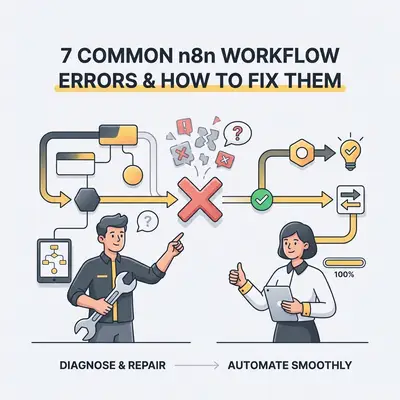
n8n workflow errors are technical interruptions that occur when an automated sequence fails to execute due to misconfigured credentials, invalid data structures, or API limitations. For small business owners, these failures often disrupt critical operations like lead management or customer communication. An unmanaged error negates the whole point of the automation, because the work quietly falls back on a person who does not know it has. By identifying the root cause—whether it is a syntax error or a connection timeout—you can quickly restore your automated operations and maintain business continuity.

Why Do n8n Workflows Fail for Small Business Owners?
Workflow failures typically stem from three primary sources: misconfigured credentials, invalid JSON data structures, or API rate limits. When a node fails, the entire sequence often halts, preventing data from reaching your CRM or email marketing platform. Understanding these common failure points allows you to build more resilient systems that require less manual oversight.
Why Are My Credentials Failing?
Credential errors occur when the API keys, OAuth tokens, or service account permissions stored in n8n no longer match the requirements of the target application. To fix this, navigate to the "Credentials" tab in your n8n dashboard. Verify that your API keys are active and ensure the scopes requested by the app match your current setup.
Quick Win: If you recently updated your password or security settings in a third-party app, you must re-authenticate your credentials in n8n to refresh the connection token.
How Do I Fix "JSON Parse" Errors?
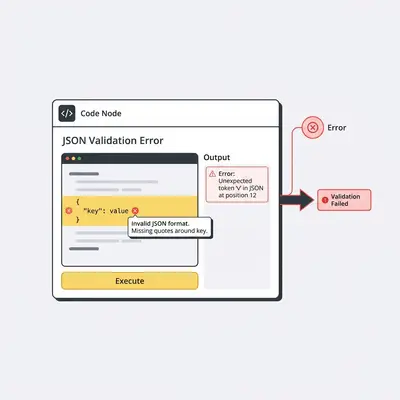
A JSON parse error happens when the data passed between nodes is not formatted correctly, often due to missing brackets or unexpected characters. You can resolve this by using the "Code" node to validate your JSON structure or by checking the "Output" tab of the previous node to ensure the data format is valid.
What Causes "401 Unauthorized" or "403 Forbidden" Errors?
These errors indicate that your workflow lacks the necessary permissions to access a specific resource or that your authentication token has expired. To troubleshoot, re-authenticate your account within the node settings. Verify that your API user has the correct "Read/Write" permissions enabled in the third-party platform’s dashboard to ensure full access.
How Can I Resolve "Rate Limit Exceeded" Errors?
Rate limit errors occur when your workflow sends too many requests to an API within a short timeframe, triggering a temporary block. You can fix this by adding a "Wait" node between your HTTP requests. Alternatively, enable "Limit Concurrent Executions" in your workflow settings to throttle the request speed and stay within API limits.
Pro Tip: Always check the API documentation of the service you are connecting to. Most platforms list their specific rate limits clearly, allowing you to calculate the necessary delay for your "Wait" nodes.
Why Is My Workflow Not Triggering?
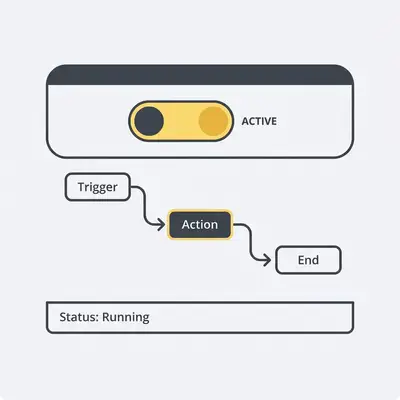
If a workflow fails to start, it is usually due to an inactive webhook, a misconfigured trigger node, or the workflow being in "Disabled" mode. Ensure the "Active" toggle in the top right corner is switched on. Verify that the webhook URL is correctly configured in the source application’s settings to ensure data flows into n8n.
How Do I Debug "Data Mismatch" Issues?
Data mismatch occurs when a node expects a specific field, such as an email address, but receives an empty value or an unexpected data type. Use the "Set" node to map your data explicitly. Implement "If" nodes to filter out null values before they reach critical steps in your workflow to prevent downstream failures.
Key Insight: Data consistency is the backbone of automation. By validating data at the start of your workflow, you prevent 80% of common runtime errors.
What Is the Best Way to Handle "Timeout" Errors?
Timeout errors happen when a node takes too long to process a request, often due to large datasets or slow third-party server responses. To fix this, increase the timeout duration in the node settings. If the task remains slow, break your workflow into smaller, asynchronous chunks to ensure each step completes within the allowed window.
Reality Check: Attempting to process thousands of records in a single execution often leads to timeouts. Processing data in batches of 50 to 100 records is a more stable approach for small business infrastructure.
Next Steps for Your Automation Journey
If you are struggling to maintain your workflows, consider a professional audit to identify hidden inefficiencies. Evalics specializes in custom automation solutions for small businesses, helping you move from manual troubleshooting to a "set it and forget it" model. Contact us today to ensure your systems are built for scale and reliability.