Prefer a full transcript? Open the video watch page.
Google Workspace Studio is Google's AI-powered automation platform. It connects your Google apps - Gmail, Drive, Calendar, Chat, Docs, Forms, Sheets, Tasks - and uses Gemini to read content, make judgment calls, and act on it, instead of only moving data between fields (Get started with Google Workspace Studio).
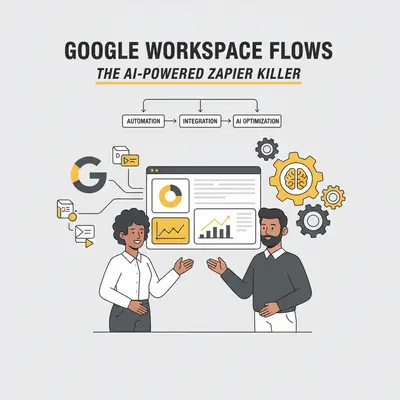
A note on the name. People still search for "flow" and "Google Workspace Flows." That is the same product. Google's own FAQ states that "Google Workspace Studio is an evolution of the capabilities we released in alpha as Google Workspace Flows," and that Studio "is the place to design, manage, and share AI-powered workflows-or flows-in Google Workspace" (Google Workspace Studio). This guide uses both terms the way Google does: Studio is the product, flows are what you build.
How Google Workspace Studio works, in one minute
Every flow is built from three components: Starters (the trigger - a new email, a form response, a schedule), Steps (the actions that run after - label an email, draft a reply, ask Gemini to summarize), and variables (data passed from one step to the next). You can build a flow by describing it in plain language, starting from a template, or configuring steps manually (Create a flow with Gemini AI; Use variables to pass data in your flow).
Starters: what kicks off a flow
Common starters include a new email arriving, a form response coming in, a scheduled time, a change to a Sheet, and meeting outputs becoming available after a call (Guide to Starters & Steps).
Steps: what a flow actually does
Steps chain together to do the work. Real examples: Decide judges a condition in plain language, Extract pulls specific data out of text, Summarize condenses a document or thread, Draft an email writes a reply into your Gmail Drafts folder, Add a row logs data to a Sheet, and Notify me in Chat or Notify me by email pings you (Guide to Starters & Steps).
Two rules matter from the start. Notify me in Chat / Notify me by email only ever reach you: both are described as sending a direct notification "only to yourself" or "to yourself" (Guide to Starters & Steps). To reach other people, use Post in a space, Send a message, Send an email, or Send a reply. And Draft an email drafts, which Google describes as letting you "review and send it later"; keep customer-facing flows on drafts until you trust the output, because the send steps go out without a human click.
Variables: connecting steps together
A variable is a piece of data captured in one step and reused in a later one. When a new email triggers a flow, the starter creates variables for the sender, subject, and body automatically; a later step can pass the sender's address into a Sheet lookup, or the body into a Gemini prompt.
Three ways to build your first flow
Google supports three entry points, all documented and current:
- Describe it in plain language. Tell Studio what you want and Gemini proposes the Starters and Steps (Create a flow with Gemini AI).
- Start from a template. Studio ships zero-configuration templates including "Get a daily summary of unread emails," "Label emails with action items," and "Get pre-meeting briefs in chat" (Now available: Create AI agents to automate work with Google Workspace Studio). Which templates you see depends on which Google apps are enabled on your account.
- Build it manually. Pick a starter, add steps one at a time, and wire variables between them yourself.
Before you turn a flow on, test it. Google's documentation is explicit that "a test run does real actions" - it sends messages, creates calendar events, and edits documents - and recommends testing against your own email address and copies of the documents a flow will touch, not production data (Test run a flow before you turn it on).
Real use cases for small teams
Email triage. A flow reads an incoming email, uses Decide to judge whether it needs urgent attention, applies a label, and notifies you in Chat - to you, not a shared space.
Meeting recaps into Tasks. Triggered by When meeting outputs are ready, a flow can summarize a call's transcript or notes, extract the action items, and create one Google Task per item with Repeat for each (Introducing the ability to loop over a list of items in Workspace Studio).
Client onboarding groundwork. When a new row lands in an intake Sheet, a flow can create a Drive folder named for the client, draft or send a welcome email, and invite the client to a kickoff with Set up a meeting or Add guests to a meeting (Guide to Starters & Steps). Block time, by contrast, only reserves a slot on your own calendar.
For ten more worked examples with the exact steps behind each one, see 10 production-ready Workspace Studio flows for small teams.
Gems: custom AI agents inside a flow
A Gem is a version of Gemini tuned with your own instructions and reference material. Google shipped an Ask a Gem step in April 2026 (Use your Gems in your Google Workspace Studio flows), but its step guide now marks Ask a Gem as no longer addable to new flows (Guide to Starters & Steps). For a new flow, put the same instructions and reference material into an Ask Gemini step.
Workspace Studio vs. Zapier and Make
| Aspect | Google Workspace Studio | Zapier | Make |
|---|---|---|---|
| Best for | Teams heavily invested in Google Workspace | Teams using diverse third-party apps | Power users needing complex workflows |
| AI capabilities | Gemini built into steps (Decide, Extract, Summarize, Ask Gemini) | Limited, mostly via third-party apps | Limited, mostly via third-party apps |
| Integrations | Google Workspace apps, plus a Beta set of third-party connectors (Asana, Jira, Mailchimp, Salesforce and others) | 6,000+ apps | 1,000+ apps with more data transformation |
| Setup effort | Low - natural language prompts, templates | Low to medium | Medium to high |
| Governance | Native Google Workspace security and compliance | Third-party OAuth per connector | Third-party OAuth per connector |
Where Studio wins: it's native to Google Workspace, needs no separate login, and Gemini's judgment (not just data-moving) is built into the step library itself.
Where the others still win: Studio's non-Google connector list is a Beta set - Asana, Jira, Mailchimp, Salesforce, with Google's help documentation also naming HubSpot and monday (Take actions in third-party services with flows) - nowhere near Zapier's or Make's thousands of apps. If your business runs on tools outside Google, that gap is real today.
What to weigh before committing
- Google-first by design. If your stack is Slack, Microsoft 365, or a mix of non-Google tools, Studio's current reach is limiting.
- The integration layer is still Beta. Some connectors, including Salesforce and monday, need a helper app installed by you or your admin (Take actions in third-party services with flows).
- It's bundled, not free-standing. Studio "is now generally available with all Business and Enterprise Workspace plans" (Google Workspace Studio) - there's no separate Studio subscription, but you need a qualifying Workspace edition and Gemini enabled by your admin.
- Test runs do real things. Google warns that "a test run does real actions" (Test run a flow before you turn it on). Now that flows can send email and move files, test against copies first. Some of these steps, including Send a reply and Move files or folders, need your approval when a run includes people outside your organization, and your Workspace admin's security policies can require approval for other steps (Manage approval requests).
Conclusion
Google Workspace Studio is a real shift from rule-based automation ("if X, do Y") toward flows that read and judge content before acting. It's strongest for tasks that start and end inside Google Workspace. It still cannot forward an email, rename a file in place, or nest one conditional step inside another, and its outside-app connectors are Beta, so complex cross-tool workflows still belong in Zapier, Make, or n8n.
Ready to see what's worth automating first? Book a free automation audit with Evalics, and we'll help you build a roadmap that starts with the highest-impact, lowest-risk flows.
Related Resources
About the Author
Kevin Michael Schindler is an AI Automation Expert at Evalics, helping small businesses and teams implement intelligent automation solutions.