Claude in Chrome: Walkthrough zum KI-Browser-Agenten
Sehen Sie, wie Claude in Chrome den Browser bedient: Installation, Demos und Einsatz in Automatisierungs-Stacks.
Claude in Chrome: Walkthrough zum KI-Browser-Agenten
Wichtigste Erkenntnisse
- Claude in Chrome kann viele Browser-Aktionen ausführen, die ein Mensch auch kann.
- Die Extension läuft auf Chromium-Browsern wie Chrome und Edge.
- Browser-Agenten helfen, wenn die Arbeit in der UI steckt und nicht nur in APIs.
Verwandter Leitfaden
Web-App-QA mit Claude Desktop automatisierenVollständiges TranskriptAnzeigen
Aus Auto-Untertiteln bearbeitet und lesbar gemacht. Entspricht dem Gesprochenen im Video.
Das Transkript stammt aus den YouTube-Untertiteln und wurde für die Lesbarkeit in Absätze gegliedert.
Claude extension can literally do everything in the browser which you also can do. And it's simply amazing. So, I want to showcase this to you. So, here I have the Claude extension installed. You can install it on Chrome and on Edge or any other Chrome base browser. I can I will show this to you later. But, here I will just want to show you how it can interact with your browser.
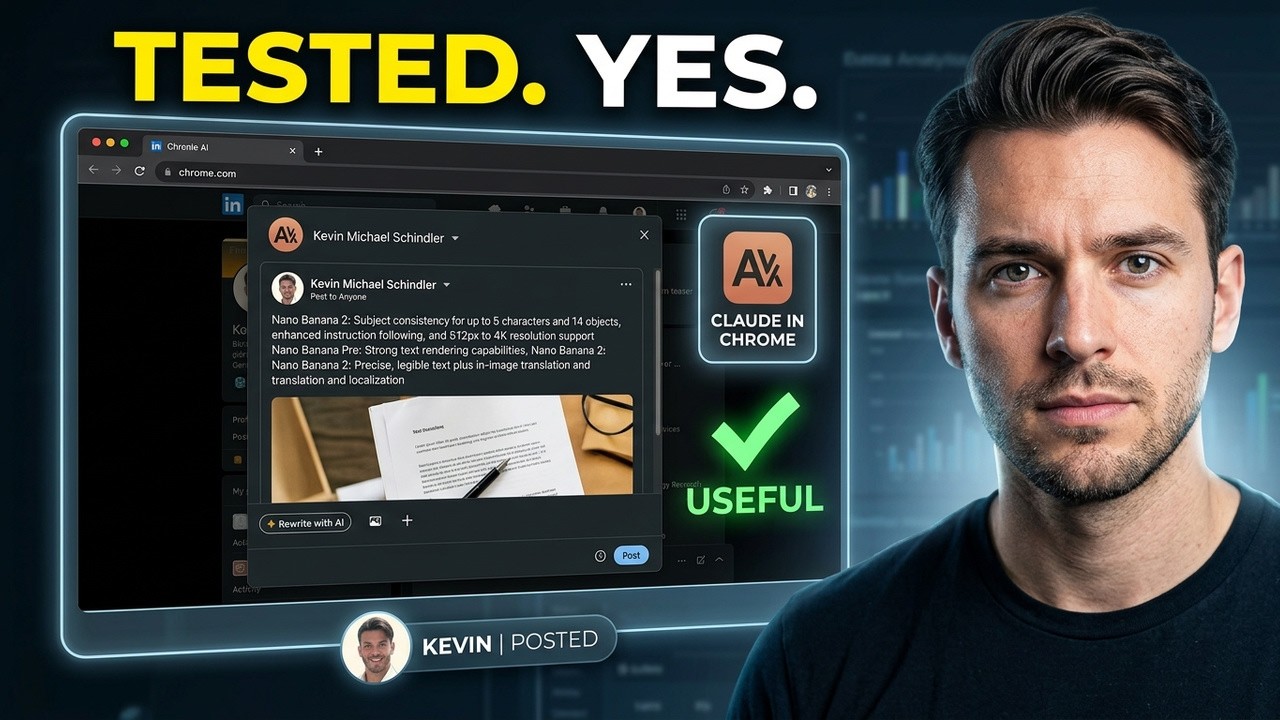
And I will demonstrate this by creating for example a LinkedIn post. Let me dictate the AI what I want. So, Google just released the new Nano Banana image model. And I want you to compare it to the Nano Banana Pro image model. So, the previous version, but the pro version with the new one with the Nano Banana 2 version. And I would like you to take a screenshot of the original release notes from Google about Nano Banana 2.
And you should create a LinkedIn post from this. Make a post with a comparison. Add the screenshot to the post and then schedule the post for next week Wednesday. All right. So, now it will do its thing. So, these are the sites it will visit. LinkedIn, blog, Google. It will search for this release notes. It will take a screenshot. It will compare both of those.
And then it will create a screen LinkedIn post, attach the screenshot, and then schedule it for Wednesday. So, we can just approve it. And then it will go ahead. And you can see now it opened a new tab. And it says here on the right side what it does. It can take screenshots. So, it understands where it is on the page right now.
It can click around just as you can. And you can see there's something happening. So actually I'm So we are on this tab, but the AI is actually on the other tab. And that's why you can see it updating. So the reason why I'm not going to the other tab is because sometimes it bugs out. So currently the reviews if we pull this up, this can run in the background.
The reviews are very low because there are some bugs and issues. But like you just need to know the quirks. So one of the quirks is that as I said, you can't really open the another tab because otherwise your chat window will disappear. And the other quirk is that if you have multiple tabs open at the beginning, it usually only works with the Opus model.
So here with the Opus one, somehow with the Sonnet 4 6 1, if you have multiple tabs open at the beginning, it doesn't work. So I would recommend to use Opus 4 6. But besides that, I think it's amazing. Like I I had to regist- register a new domain and in Microsoft and I new email and I need to set up like SPF, DKIM, DMARC.
You always have to set this up for new emails. And I asked Claude to do it. And it did everything. It set up the records. It entered the records into my hosting like DNS records. It created the user. It did everything. And this is just amazing. So the use cases are obvious that when you only need to do something once, it makes a lot of sense that you just delegate it to Claude because you literally only have to learn it once and then never again.
And that's a low return on invest. And you don't need to train any anybody for this. You can just tell it what needs to be done and it can figure it out. That's why I'm so excited about this tool. And yeah, I think it will be used much much more in the future once the quirks are fixed. One more thing, obviously there are some risk to it in regards to prompt injection.
So if you're on a page you don't trust, there can be like prompt injection injections. For example, there can be a screenshot or Claude can make a screenshot of the page and the screenshot maybe contains some prompt injection. So this is something you need to be aware of. But yeah, now you can see it interacts with the LinkedIn post feature. You can see it it can write text here.
Google just dropped Nano Banana 2 and it's a big deal for AI image generation. Here's how it stacks up against Nano Banana Pro. Nice speed. Exactly. You can also obviously have more elaborate prompts if you want a specific style or specific content. With all these AI topics, I think it's nice to have just an extended arm. Like you don't need to do everything like automatic, but instead you just have an idea.
For example, for me it came out and my first question was like how's Nano Banana 2 different to Nano Banana Pro? And one of the main difference here is that it's like the it uses the Gemini flash version. So it's cheaper, it's faster, and it's still good with text. That's a question I had for myself and that's why I'm making this post.
Let's see. Yeah, it's quite a long post. And let's I will I think I will just leave this post as it is just for the heck of it. The last thing here is now that it needs to add the image. And this is quite tricky because if you add a block, like a link, it will auto create this preview image. So I'm not sure whether the AI can figure it out because you have to delete this one first, like the preview, and then you can up upload the image again, like your own image.
So, let's see whether AI can figure it out. Okay, so it has been trying to do it for now, I think a minute. And I will probably just intervene because, to be honest, like this is not intuitive for humans as well, right? Like, why can't I Why is there no upload button? So, let me just help out the AI cuz now I can see I have deleted it.
Now it's there again. Okay, so here, let's stop it. Let's tell it, I deleted the blog preview, so now you can see the upload button. And let's see whether it can catch up where it left off. Takes a screenshot. Probably now sees the button. Probably I should tell it after this to to make a feedback email to LinkedIn. Zooming in. All right, but while this is going on, we can actually quickly show you where to install it.
So, if you download Cloud, you go to click on your profile at the bottom left, go to apps and extensions, and then you will see Chrome. And then you just press install. It will open this window. And then you can press, like, add here and add it to your Chrome extension. And once you have added it, >> [clears throat] >> you will see it at the top right.
So, when you click on this button, it will open the chat, and then you can interact with it. And on the top, you can see the tabs it has access to. And now it's actually on my PC, and it's probably will go to the screenshot folder and pick the recent screenshot and upload it. Okay, so now I can actually close this window because I see it already uploaded it in the background.
And again, everything is done without me like touching it. It just looked this at the screenshots and uploaded selected the correct file and uploaded the file. And now it tries to schedule it for next What did I say? Next Wednesday? Okay, now it set the correct date. I didn't tell it a specific time, so probably it will just use the current time.
And here we are. And boom, it's done. It scheduled a post. You can see it here. It gave me a rundown of what is it has done. And it's just mind-blowing. So, did it take longer compared to if I would have done it manually? Yes. Was I also doing something else while this was running? Absolutely. Because that's the beauty of it. You can just tell it a task and it will do its thing and then you can come back and see how it has done.
And obviously you can have safeguarding and guardrails and so on, but like I think this is the future and it's amazing. This is the final post. So, you can see the text here. The outline, I think it's nice. It's short and brief. You can see the link to the original page or to the original release. And you can also see it integrated the screenshot of this original release.
Yeah, that's a little video I wanted to make. See you. Bye-bye.
Auf YouTube ansehen: https://www.youtube.com/watch?v=GcA16w-3yj8