If you are building n8n workflows by dragging nodes one by one and testing with live data every single time, you are doing it the hard way.
Most users treat n8n like a simple pipe: data comes in, data goes out. But under the hood, n8n offers a suite of "developer-grade" features wrapped in a low-code interface. Ignoring them doesn't just make your workflows messy—it costs you hours of debugging time every week.
The difference between a beginner and a pro isn’t how complex their logic is. It’s how efficiently they build and maintain it.
Here are the 7 hidden (or underused) n8n features that will immediately save you 10+ hours a week in development and troubleshooting time.
1. Pin Data: Stop Burning API Credits
The biggest time-waster in automation is the "Test loop." You make a change, you trigger the webhook, you wait for data, you see if it worked. If you are working with paid APIs (like OpenAI or expensive scraped data), this also burns money.
The Fix: Use Pin Data.
Pin Data allows you to "lock" the output of a node. Once data is pinned, n8n treats that node as having already run. You can tweak and re-run the rest of your workflow 100 times without ever hitting the trigger or the external API again.
Quick Win: Run your trigger once to get real sample data. Click the node's menu (three dots) and select "Pin Data". Now you can build the rest of your flow offline, instantly.
This feature alone turns a 30-minute debugging session into a 5-minute fix.
2. Sub-Workflows (The "Execute Workflow" Node)
Beginners copy and paste. Pros reuse.
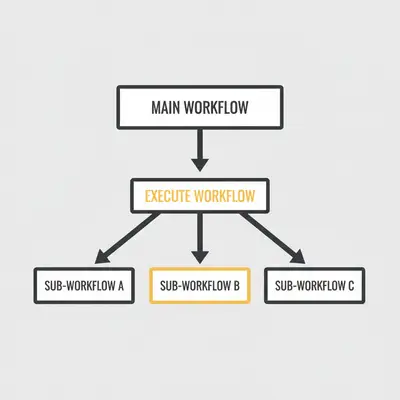
If you find yourself building the same "Slack Notification" or "Lead Formatting" sequence in five different workflows, you need Sub-workflows. Instead of rebuilding logic, you create one "Master Workflow" for that task and call it using the Execute Workflow node.
Why this saves time:
- Update once, update everywhere: If you change your Slack channel, you update the Master Workflow, and all 50 automations referencing it update instantly.
- Cleaner canvas: Your main workflow becomes a simple, readable summary of steps rather than a spaghetti monster of 50 nodes.
3. The "Wait" Node (Human-in-the-Loop)
Automation doesn't always happen in milliseconds. Sometimes, you need a human to approve a draft, or you need to wait for a customer to reply.
Many users try to build complex "polling" systems that check a database every hour to see if a status changed. That’s inefficient.
The Hidden Feature: The Wait Node (specifically the "Wait for Webhook" mode).
You can pause a workflow execution for days or weeks. The workflow literally sleeps. When a specific link is clicked (e.g., inside an email sent to a manager), the workflow wakes up and continues exactly where it left off.
Example: An AI drafts a reply. The workflow sends the draft to you via Slack with an "Approve" button. The workflow Waits. You click "Approve" two hours later. The workflow wakes up and sends the email to the client.
4. Copy and Paste Between Browser Tabs
This sounds trivial, but it is a game-changer.
In many platforms (like Zapier or Make), moving logic between scenarios can be tedious. In n8n, the node structure is just JSON text.
You can select a group of nodes in one browser tab, hit Cmd+C (or Ctrl+C), switch to a completely different workflow in another tab, and hit Cmd+V. It pastes the nodes with all settings, expressions, and connections intact.
Pro Tip: You can even paste nodes directly into a text editor (Notepad or VS Code) to save "snippets" of code for later, or share them with a colleague via Slack. They just copy the text and paste it onto their canvas.
5. Global Error Workflows
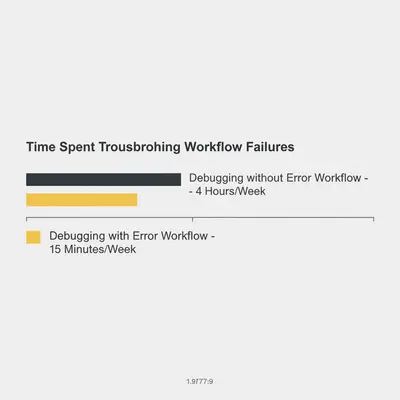
Nothing kills productivity like waking up to find your automation failed silently three days ago.
Instead of adding an "Error" path to every single node (which is messy), use the Global Error Workflow setting.
How to set it up:
- Create a generic "Error Handler" workflow (e.g., sends a Slack alert with the error message and workflow ID).
- Open your main workflow.
- Go to Settings (in the workflow menu).
- Select your Error Handler in the "Error Workflow" dropdown.
Now, if any node in your main workflow crashes, n8n automatically triggers the Error Handler. You get instant visibility without cluttering your canvas.
6. The AI Code Assistant
The Code Node is the most powerful node in n8n, but it requires JavaScript. If you aren't a developer, you might avoid it.
The Hidden Feature: The built-in AI Assistant inside the Code Node.
You don't need to know syntax. You can simply open the Code Node and type: "Filter this list to only keep items where the 'email' field contains @gmail.com, then sort by date."
The AI will generate the working JavaScript for you. This bridges the gap between "No-Code" and "Pro-Code," allowing you to perform complex data transformations that would otherwise require 10 different nodes.
7. Sticky Notes and Renaming
Documentation feels like a waste of time until you revisit a workflow you built six months ago and have no idea what it does.
n8n offers two subtle UI features that save hours of "re-learning" your own work:
- Node Renaming: Don't leave nodes named "HTTP Request 1" and "HTTP Request 2." Rename them to "Get HubSpot Contact" and "Post to Slack."
- Sticky Notes: You can add bright yellow sticky notes directly to the canvas to explain why a specific logic block exists.
Reality Check: If you work in a team, Sticky Notes are not optional. They are the difference between your colleague fixing a bug in 5 minutes or breaking the entire system because they didn't understand your logic.
Summary: Work Smarter, Not Harder
Automation is supposed to save you time—so don't let the building of automation become a second job.
By using Pin Data for testing, Sub-Workflows for modularity, and Global Error Handlers for stability, you shift from "tinkering" to engineering.
Where to start? Open your most complex workflow today. Try to replace a repeated section with a Sub-Workflow, or add a Sticky Note to that one confusing node. Your future self will thank you.
zation Techniques](/blog/n8n-workflow-optimization-techniques-full-guide)
Official Sources
- n8n Documentation: Data Pinning
- n8n Documentation: Sub-workflows
- n8n Academy: Error Handling
Ready to scale your n8n workflows? Stop guessing and start building with confidence. Book a demo with Evalics to see how we optimize complex automations for maximum efficiency.
About the Author By Kevin Michael Schindler, AI Automation Expert at Evalics. Kevin specializes in helping businesses transition from manual chaos to streamlined, automated systems using n8n and AI.