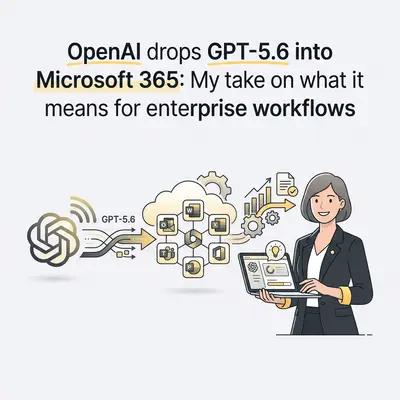
OpenAI just announced that GPT-5.6 is now the preferred model in Microsoft 365 Copilot. According to OpenAI’s official release, this update rolls out flagship-level intelligence natively into Word, Excel, PowerPoint, Chat, and Cowork. Instead of bouncing between specialized web apps, millions of corporate users get direct access to OpenAI's latest model directly inside the office suite they already open every morning.
At Evalics, we spend our days designing and tuning business workflows. I see enterprise teams struggle constantly with model switching costs and token efficiency. OpenAI and Microsoft claim this upgrade delivers "more useful work from every token" while handling complex, cross-functional tasks with fewer prompt iterations. That is a bold promise for an ecosystem that has sometimes felt rigid for heavy power users.
This move marks a shift in how core enterprise tools operate. Up until now, embedded AI assistants often felt like stripped-down, lightweight versions of flagship models. Bringing GPT-5.6 straight into office software changes the math on native enterprise automation. Here is my breakdown of what this upgrade actually changes for real-world workflows, where it shines, and where custom automation still wins.
What changes when GPT-5.6 powers your daily apps?
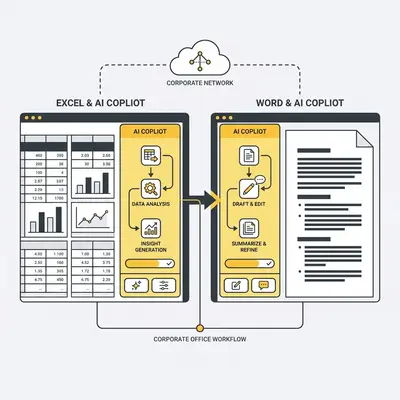
The biggest bottleneck in AI adoption isn't model smarts—it's context switching. For the last two years, knowledge workers have been playing a frustrating game of tab-ping-pong. They copy raw data out of Excel, paste it into a standalone web chat to clean it up, and then manually copy the formatted output back into Word or PowerPoint.
Key Insight: Dropping a flagship model directly into Microsoft 365 removes the copy-paste penalty. When the model operates directly on native file structures, context remains intact across the entire task lifecycle.
GPT-5.6 brings higher reasoning capabilities natively into document structures. In practical terms, this means the model understands document hierarchy, spreadsheet formulas, and slide layouts without requiring you to manually format raw text inputs. It reduces the need for "prompt engineering" tricks just to get a clean paragraph or a functional formula.
For teams running daily business operations, this upgrade translates to three immediate shifts:
- Fewer prompt loops: You can ask for complex structural edits in Word or Excel once, rather than guiding the AI through four micro-prompts.
- Better token economy: The model is optimized to process large context windows more efficiently, meaning longer spreadsheets and multi-page reports won't hit token limits as quickly.
- Cross-app reasoning: Tasks that touch multiple M365 apps—like summarizing an Excel audit into a PowerPoint deck—become significantly smoother inside tools like Cowork.
How does GPT-5.6 handle complex Excel and Word tasks?
Excel has always been the ultimate test for enterprise AI. Basic LLMs struggle with spreadsheet logic because tables rely on spatial relationships and exact formula syntax, not just natural language probability. A model that hallucinates a single cell coordinate can ruin a financial forecast.
With GPT-5.6, the focus shifts from simple data lookup to deep, multi-step analysis. In Excel, the model can interpret raw datasets, construct nested formulas, and generate visual summaries with minimal manual guidance. Instead of just asking "What were our top sales last quarter?", you can ask it to identify seasonal variance across five product categories and generate a clean reconciliation table.
Real-world Example: Imagine an accounting manager handling monthly reconciliation. Previously, Copilot might suggest basic
SUMIFformulas. With GPT-5.6, you can feed a 5,000-row general ledger dump into Excel and ask it to flag anomalies, match cross-department invoices, and draft the narrative balance sheet commentary directly in Word—all while preserving audit trails.
In Word, the upgrade focuses on long-form coherence. Anyone who has used AI to write a 15-page proposal knows the pain of "drift," where the model forgets tone, persona, or structural constraints by page eight. GPT-5.6 maintains stylistic consistency across long documents, making it far more viable for drafting legal contracts, technical specifications, and formal project scopes.
What are the limits of native Microsoft Copilot integration?
While native model upgrades are a massive win, standard office tools still have clear structural limits. It is easy to confuse an intelligent assistant with a fully automated system.
Microsoft Copilot is designed primarily as a human-in-the-loop co-pilot. It sits beside you while you work inside a desktop app. It waits for you to click a button, type a prompt, or approve an action. That works great for active creation, but it falls short when you need passive, automated pipeline execution.
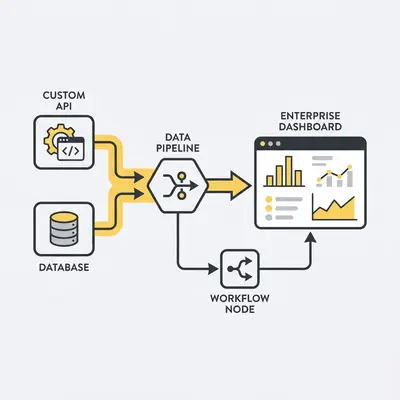
Reality Check: Copilot won't automatically wake up at 2:00 AM, query your cloud warehouse, clean three unstructured CSVs, format them into an Excel file, and email the final deck to your board. For true end-to-end automation, you need workflow orchestrators.
Here is a quick breakdown of where native Copilot stops and dedicated workflow automation takes over:
| Workflow Requirement | Microsoft 365 Copilot (GPT-5.6) | Dedicated Automation (n8n / Custom Pipelines) |
|---|---|---|
| Trigger Mechanism | User-initiated (manual prompt) | Event-driven (webhooks, cron schedules, database updates) |
| System Access | M365 Ecosystem + standard connectors | Unlimited custom APIs, legacy systems, local databases |
| Execution Cost | Flat per-user license fee | Pay-per-execution / infrastructure costs |
| Human Supervision | Continuous (in-app interactive) | Exception-based (alerts only when something fails) |
| Custom Logic | Constrained by M365 app guards | Full custom JavaScript/Python execution control |
If your goal is to help an individual employee write emails or build slide decks 30% faster, Copilot with GPT-5.6 is fantastic. But if your goal is to remove the human entirely from a recurring transactional process, native office tools aren't built for the job.
Should you build custom AI agents or rely on Microsoft 365?
This is the exact question enterprise leaders ask us every week at Evalics. Now that flagship models live inside Microsoft 365, should you stop building custom AI agents?
The answer depends on whether your task is collaborative or systemic.
Use Microsoft 365 Copilot when:
- The output requires human judgment: Writing strategic memos, designing client presentations, or refining executive communications.
- The work happens inside files: Your staff already spends 6+ hours a day inside Word, Excel, and PowerPoint.
- Data security is strict: You need to keep all data contained strictly within your existing Microsoft enterprise compliance boundary without configuring external API pipelines.
Build Custom AI Agents (via n8n or Python) when:
- The task spans non-Microsoft systems: You need to bridge Salesforce, Hubspot, custom PostgreSQL databases, and legacy internal platforms.
- The volume is huge: Processing tens of thousands of incoming customer tickets or parsing thousands of PDFs per hour is cost-prohibitive and impractical via interactive chat windows.
- You need strict determinism: You require granular control over fallback logic, exact model parameters, custom system prompts, and multi-agent debate loops.
Pro Tip: Don't treat native Copilot and custom AI workflows as rivals. The most efficient organizations use background automation (like n8n) to gather, clean, and structure operational data, and then hand that structured data over to Microsoft 365 where staff use Copilot to review and polish it.
How to optimize your team for the GPT-5.6 rollout?
Upgrading the underlying model inside Copilot won't automatically fix broken business processes. If your team has poor document management, ambiguous SOPs, or dirty spreadsheet habits, putting GPT-5.6 on top will just generate bad outputs faster.
To get actual ROI out of this upgrade, you need to prepare your operational workflows. Here are three steps to take right now:
1. Standardize Document Structure
LLMs thrive on clean input structure. Ensure your corporate templates in Word and Excel use standardized headers, consistent named ranges, and clear structural hierarchies. When GPT-5.6 parses a document with clean semantic markup, the accuracy of its edits skyrockets.
2. Shift from "Writing" to "Reviewing"
Train your staff to change their mental model of office work. Instead of starting from a blank page in Word or a blank sheet in Excel, their job is now to frame the prompt, define the acceptance criteria, and audit the output generated by GPT-5.6. The primary skill in 2026 is quality control, not manual drafting.
Quick Win: Audit your team's most frequent repetitive tasks this week. Identify any process where an employee spends more than 45 minutes compiling a standard document or report. Make that process the first candidate for a standardized GPT-5.6 prompt template inside Copilot.
3. Establish Clear Escalation Rules
Define when a Copilot draft is ready for client delivery and when it requires human sign-off. For financial models or legally binding contracts, set strict validation rules. Never let an unvetted AI output leave the organization without a human approving the underlying logic.
Source
Original reporting on the GPT-5.6 preferred model rollout in Microsoft 365 Copilot:
GPT-5.6 is now the preferred model in Microsoft 365 Copilot