You pay $150 per user every month for an enterprise CRM. Your team logs in, ignores 90% of the features, and uses it as an overpriced address book. When you want to automate a simple follow-up sequence, you discover you need to upgrade to the "Advanced" tier for another $100 a month.
Software bloat is quietly draining your margins.
Most small to medium-sized businesses do not need Salesforce, HubSpot Enterprise, or complex legacy platforms. You need a system that captures leads, organizes conversations, tracks deals, and automates follow-ups. That is it.
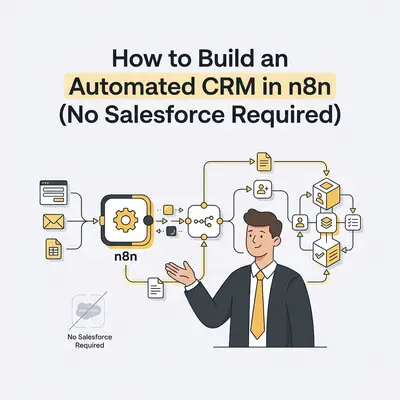
You can build this exact system yourself. By combining n8n with a lean database, you can create a custom, fully automated CRM tailored perfectly to your business processes. It costs a fraction of the price, you own the data, and it does exactly what you tell it to do.
Here is exactly how to build an automated CRM in n8n.
The Core Components of Your Custom CRM
A CRM is just a database attached to a set of rules. When you strip away the fancy dashboards and marketing fluff, you only need three layers to make it work.
1. The Data Layer (Where your leads live) You need a place to store information. Do not use Google Sheets for this. Instead, use a relational database.
- For Beginners: Airtable or SmartSuite. They offer visual interfaces and connect easily to n8n.
- For Advanced Users: Supabase or a hosted PostgreSQL database. This gives you ultimate scalability and data ownership.
2. The Logic Layer (The brain) This is n8n. It acts as the traffic controller. It receives new leads, enriches their data, updates the database, and triggers communications.
3. The Action Layer (The communication tools) These are the apps you already use. Gmail or Outlook for emails. Slack or Discord for internal team alerts. Twilio for SMS.
Reality Check: Building your own CRM takes time upfront. You are trading money for effort. But once built, you have a system with zero per-seat licensing costs that scales infinitely. If you are tired of paying for overlapping tools, this is your way out. Read more about this approach in our guide to Stop Paying for 10 Different SaaS Tools Build Them in n8n.
The Financial Impact: Custom vs Enterprise
Let's look at the numbers. If you have a team of 10 sales reps, traditional CRMs become a massive line item on your P&L statement.
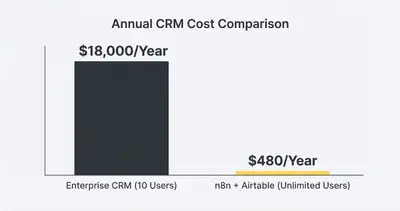
By moving the logic out of the expensive SaaS platform and into n8n, you stop paying per-user fees for automation features. You only pay for your database storage and your n8n hosting.
Step 1: Design Your Database Schema
Before you open n8n, you must structure your database. A flat list of names will not work. You need relational data.
Create three distinct tables in your database (e.g., in Airtable or PostgreSQL):
- Companies: Fields for Company Name, Website, Industry, and Revenue.
- Contacts: Fields for First Name, Last Name, Email, Phone, and a linked field to the Companies table.
- Deals: Fields for Deal Name, Stage (Lead, Meeting Booked, Proposal Sent, Closed Won), Value, and a linked field to the Contacts table.
Structuring it this way ensures that if John Doe moves to a new company, you update his contact record without breaking the entire deal history.
If you are currently running your operations on a basic spreadsheet, this is the perfect time to upgrade. Check out our guide on When to Move From Google Sheets to Database Signs Your Automation Needs to Scale.
Step 2: Ingest Leads with Webhooks
Your CRM needs data. The most common entry point is a form on your website.
Instead of paying for Zapier to connect your form to your CRM, you will use an n8n Webhook node.
- Add a Webhook Node to a new n8n workflow. Set it to listen for
POSTrequests. - Copy the Webhook URL provided by n8n.
- Go to your website form builder (Gravity Forms, Typeform, Webflow, etc.).
- Paste the Webhook URL into the form's submission settings.
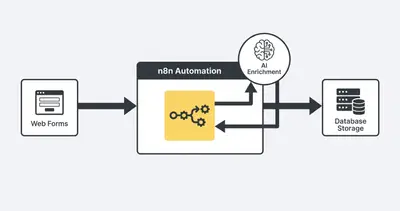
Now, whenever a prospect fills out your form, n8n instantly receives a JSON payload containing their name, email, and message. This triggers the automation.
Step 3: Enrich the Data with AI
This is where your custom CRM outshines legacy platforms. Traditional CRMs require manual data entry. Your n8n CRM does it automatically.
When a lead comes in, they usually just provide an email address and a name. You can use n8n to enrich this data before it ever hits your database.
- Add an HTTP Request Node after your Webhook.
- Connect it to an enrichment API like Apollo, Clearbit, or Hunter.io using the prospect's email domain.
- Pull in data like company size, industry, and headquarters location.
- Add an OpenAI or Anthropic Node.
- Pass the enriched data to the AI model with a system prompt: "Analyze this company data and categorize their industry. Score this lead from 1-10 based on how closely they match our ideal customer profile of B2B SaaS companies."
Pro Tip: AI lead scoring prevents your sales team from wasting time on unqualified leads. If the AI scores a lead below a 4, automatically route them to an email nurture sequence. If they score an 8 or above, alert a human rep immediately.
Step 4: Update the Database
Now that you have clean, enriched data, it is time to push it into your database.
- Add your database node (e.g., Airtable Node or PostgreSQL Node).
- Set the operation to "Upsert" (Update or Insert).
- Map the data from your previous steps to the correct columns.
Using "Upsert" is critical. If John Doe submits a form today, n8n creates a new record. If John Doe submits another form next month, n8n finds his existing record and updates it, preventing duplicates.
Step 5: Automate Routing and Alerts
A CRM is useless if nobody looks at it. You need proactive alerts.
Add a Switch Node to your workflow. Route the leads based on the AI lead score you generated in Step 3.
- Path 1 (High Score): Connect a Slack or Discord node. Send a message to the #sales-alerts channel: "New High-Intent Lead: [Name] from [Company]. AI Score: 9/10. Here is their website..."
- Path 2 (Low Score): Connect a Gmail or Outlook node. Automatically send a polite, helpful email with a link to your self-serve resources, bypassing the sales team entirely.
This single workflow replaces the need for a dedicated sales development representative (SDR) sorting through a messy inbox. For more insights on this approach, read about AI Sales Automation for Small Businesses.
Step 6: Automate the Follow-Up Sequences
Capturing the lead is only the first step. The real money is in the follow-up. You can build powerful drip campaigns directly in n8n.
Create a separate workflow triggered by a Schedule Trigger (Cron) Node.
- Set the trigger to run every morning at 8:00 AM.
- Add a database node to search for all records where the Deal Stage is "Proposal Sent" and the "Last Contacted Date" is more than 3 days ago.
- Add a loop to process these records one by one.
- Use an AI node to draft a contextual follow-up email based on the original proposal notes.
- Send the email via your Gmail node.
- Update the "Last Contacted Date" in your database to today.
Quick Win: Do not send fully automated emails if your deal sizes are large. Instead, have n8n draft the email and save it as a draft in your Gmail account. Your sales rep just reviews, tweaks, and clicks send. It saves 10 minutes per email while maintaining a human touch.
Handling Errors and Maintenance
When you build your own CRM, you are the IT department. If an API key expires, the workflow stops.
You must implement error handling to ensure you never lose a lead.
In your main ingestion workflow, go to the workflow settings and enable the "Error Workflow" feature. Create a simple secondary workflow that triggers only when your main workflow fails. Have it send an immediate Slack message or SMS to your technical lead saying: "CRITICAL: CRM Ingestion Workflow Failed. Check n8n logs."
Document your workflows. When you have dozens of nodes mapping data to different tables, it gets confusing quickly. Use n8n's sticky notes feature to label exactly what each section of your workflow does. Proper documentation is essential for long-term success. Check out our n8n Workflow Optimization Techniques Full Guide for best practices on structuring complex automations.
Ready to Ditch Your Bloated CRM?
Building a custom CRM in n8n requires strategic thinking and a few hours of focused setup. But the payoff is massive. You get a tailored system that matches your exact sales process, automates your tedious tasks, and costs almost nothing to run.
You stop conforming to how Salesforce wants you to work, and start making your tools work for you.
Key Takeaways:
- Use a lean database (Airtable/Postgres) to hold data, and n8n to run the logic.
- Enrich your leads automatically with AI before they enter the database.
- Use Upsert operations to prevent duplicate records.
- Build automated routing to keep your sales team focused on high-intent prospects.
If you are tired of paying enterprise software fees and want to build a highly efficient, custom automated system for your business, we can help. Book a demo with Evalics today, and let's architect a workflow that actually saves you money.
Related Resources
- Stop Paying for 10 Different SaaS Tools Build Them in n8n
- When to Move From Google Sheets to Database Signs Your Automation Needs to Scale
- AI Sales Automation for Small Businesses
- n8n Workflow Optimization Techniques Full Guide