
You just built your first n8n workflow. It runs perfectly. You tested it, deployed it, and walked away feeling like an automation genius.
Then, a month later, you check your server bill or your n8n Cloud task usage. Your jaw drops. You hit your monthly limits in three days. Your server crashed twice. Worse, a broken step silently dropped 50 customer leads, and you had no idea.
Automation is supposed to save you money. But when built incorrectly, it drains your budget and wastes your time.
None of these mistakes are exotic. A single misconfigured trigger or a missing error path is usually all it takes, and the damage only shows up later on the bill or in the leads that never arrived.
Here are the five most expensive mistakes beginners make in n8n—and exactly how to fix them today.
1. Polling APIs Instead of Using Webhooks
This is the fastest way to burn through your monthly task limit.
Many beginners want an automation to run when a new lead enters their CRM. They use a "Schedule" trigger to check the CRM API every single minute.
"Are there new leads?" No. "Are there new leads?" No.
If you run this every minute, that equals 1,440 executions per day. That is 43,200 tasks every month. If you only receive 500 leads a month, you just wasted over 42,000 tasks on empty responses. On a paid n8n Cloud plan or an API limit, this gets expensive fast.
The Fix: Use Webhooks.
A webhook is like giving the CRM your phone number and saying, "Don't call me unless you have a lead." The workflow stays asleep until the exact moment a lead arrives.
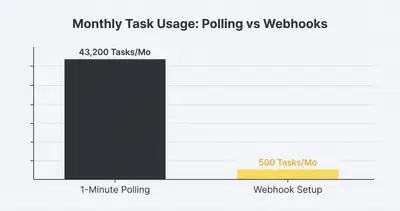
Quick Win: Audit your active workflows. If you see a Schedule node hooked up to an HTTP Request node checking for new data, replace it with a Webhook node. You will instantly slash your task usage. Read more on how Stop Coding API Integrations How n8n Webhooks Save Time.
2. Processing Massive Datasets All at Once
You want to sync a Google Sheet with your database. The sheet has 15,000 rows. You pull all 15,000 rows into n8n and try to process them in a single step.
Suddenly, your n8n instance freezes. Your server crashes. The workflow fails.
n8n holds workflow data in its memory (RAM) while the execution runs. If you pull massive amounts of data at once, you create "memory bloat." The server simply cannot hold that much data simultaneously. To fix this, you must buy a much larger, more expensive server. That destroys your profit margins.
The Fix: Batch your data.
Use the Loop node (formerly known as the Split in Batches node). This tells n8n to process the data in manageable chunks—say, 50 rows at a time. It processes 50, clears the memory, and grabs the next 50.
Reality Check: You do not need a massive enterprise server to run heavy automations. You just need to optimize how the data flows. Proper batching lets a cheap $10/month server do the work of a $100/month server. For deeper technical fixes, check out our guide on n8n Memory Bloat Fixes Handle Large Payloads Without Crashes.
3. Ignoring Error Handling Completely
A prospect fills out your form. The workflow sends that data to an AI agent. The AI agent API has a temporary outage and returns a 500 Error.
What happens to your workflow? It stops dead in its tracks.
If you do not have error handling built into your n8n setup, you will never know the workflow failed. You lose that lead forever. By the time the client complains that nobody called them, the damage is done. Losing clients is the most expensive mistake you can make.
The Fix: Set up the Error Trigger node.
Create a brand new workflow in n8n. Add the Error Trigger node. Connect it to a Slack or email node. Now, go to your n8n settings and set this new workflow as your default error workflow.
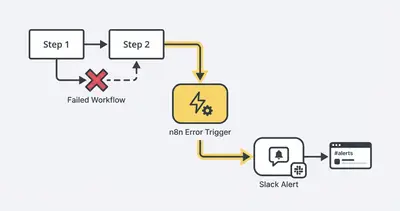
Every time any automation fails, n8n will instantly message you. You will know exactly which node broke, at what time, and why. You can fix it before the client even notices.
Pro Tip: Don't just catch errors—build retry logic. Use the "Continue On Fail" setting in node options, followed by an IF node to try an alternative backup API if the primary one goes down.
Ready to bulletproof your systems? Book a demo with Evalics to see how we build robust, error-proof AI workflows for small businesses.
4. The Nested IF Node Nightmare
You need to route a customer support ticket based on its category. If it's "Billing", send to accounting. If it's "Technical", send to IT. If it's "Sales", send to the sales reps. If it's "Refund", send to management.
Beginners will drag four different IF nodes onto the canvas, chaining them together in a massive, messy web. We call this "spilled logic."
Why is this expensive? Maintenance time. When you need to add a new category or change a route six months from now, it takes hours to untangle the visual mess. Time is money.
The Fix: Use the Switch node.
The Switch node evaluates one piece of data (like the ticket category) and creates unlimited routing paths from a single node.
Key Insight: A workflow with 10 IF nodes takes 3 hours to troubleshoot and maintain. A workflow with 1 Switch node takes 30 minutes. Stop chaining IFs. Learn more about cleaning up your logic with The Switch Node Secret How To Clean Up Your Messy Automations.
5. Hardcoding Credentials in HTTP Nodes
When connecting to custom APIs, you need to provide an API key. Many beginners simply open the HTTP Request node, go to the Headers section, and paste their secret API key directly into the text field.
This is a massive security and maintenance risk.
If you use that API key across 20 different workflows, what happens when you need to rotate the key? You have to manually open 20 workflows, find every HTTP node, and paste the new key. If you miss even one, critical business processes fail.
Worse, if you share that workflow template with a colleague or client, your private API key goes with it.
The Fix: Use n8n's Credentials Vault.
Create a credential in n8n. Name it securely. Then, select that credential from the dropdown menu inside your HTTP Request node. n8n safely injects the key during the run. When you need to update the key, you change it once in the vault. Every single workflow updates automatically.
Summary: Building for Scale
Automation platforms like n8n are incredibly powerful. But building workflows that scale requires discipline.
Let's recap the key takeaways:
- Ditch polling. Use webhooks to cut your API costs and task usage by up to 90%.
- Batch large data. Protect your server memory by processing rows in small chunks.
- Expect failure. Build global error triggers so you never lose data silently.
- Clean your logic. Replace messy IF chains with streamlined Switch nodes.
- Secure your keys. Never hardcode credentials; use the built-in vault.
By fixing these five mistakes, your n8n workflows will run faster, consume fewer resources, and cost significantly less to maintain.
Stop wasting money on broken workflows. If you need expert help migrating, securing, or optimizing your business automations, book a demo with Evalics today. We build reliable AI systems that actually scale.
By Kevin Michael Schindler, AI Automation Expert at Evalics
Related Resources
- Stop Coding API Integrations How n8n Webhooks Save Time
- n8n Memory Bloat Fixes Handle Large Payloads Without Crashes
- The Switch Node Secret How To Clean Up Your Messy Automations
- How To Improve n8n Workflow Performance Tips Faster Stable Flows